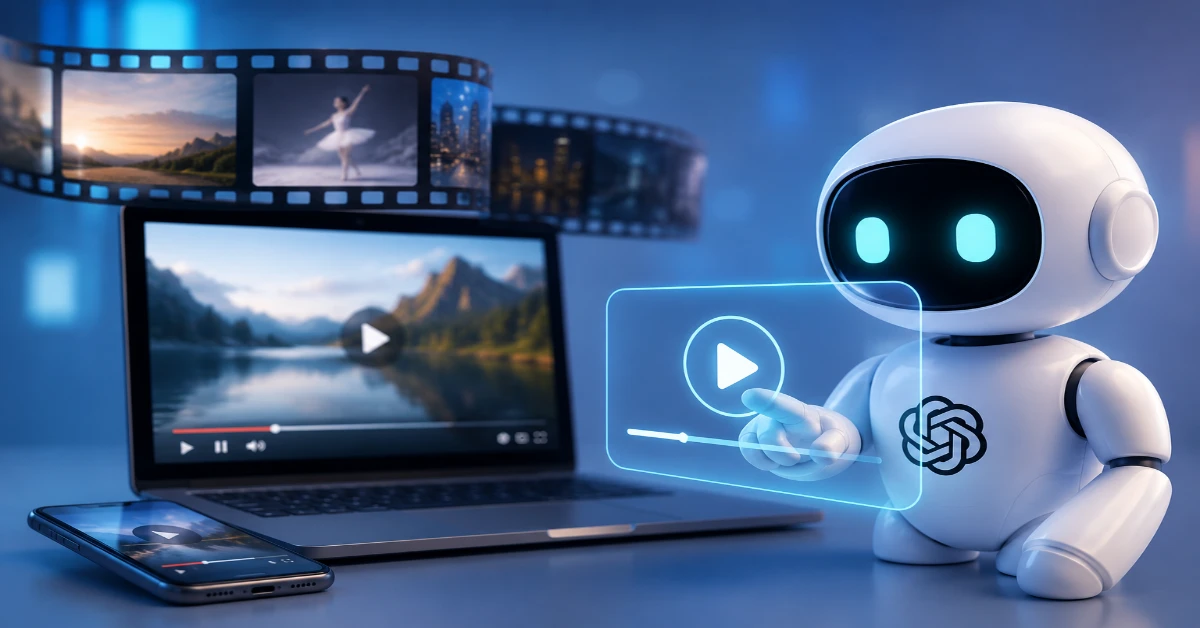
“Can ChatGPT watch videos?” It’s one of the first questions people ask once they’ve moved past typing simple prompts and started testing ChatGPT’s limits with photos, voice, and video. The honest answer is more nuanced than a flat yes or no: ChatGPT can’t sit back and stream a two-hour movie the way a person would, but it does have real, documented ways of engaging with video, from live camera vision in Advanced Voice Mode to processing transcripts and still frames pulled from a clip. This guide breaks down exactly what ChatGPT can and can’t do with video in 2026, based on OpenAI’s own product documentation, so you can pick the workflow that actually works instead of wasting time on one that doesn’t.
Can ChatGPT Watch Videos? The Short Answer
No — not in the way a person watches a video. ChatGPT isn’t a media player. It can’t open a YouTube link, hit play, and narrate what’s happening on screen from start to finish, and it can’t stream a saved video file the way a browser does. According to OpenAI’s own file-upload documentation, the officially supported file types for a standard ChatGPT conversation are documents, spreadsheets, presentations, PDFs, and images — video files aren’t on that list.
That’s not quite the whole story, though. ChatGPT does have one genuine, well-documented way of processing video: Advanced Voice Mode’s live camera feature, which lets it see what your phone’s camera sees and respond in something close to real time. That’s different from watching a saved recording, but it’s a real form of visual understanding that behaves a lot like a video call. It’s also worth separating this from Sora, OpenAI’s separate video-generation tool — Sora creates new video from text prompts; it doesn’t give ChatGPT the ability to watch existing footage. The rest of this guide separates live video vision from uploaded video files, so you know which one applies to your situation.
How ChatGPT “Watches” Video in Real Time
Live Camera Vision Through Advanced Voice Mode
The clearest example of ChatGPT engaging with video is Advanced Voice Mode’s camera-sharing feature, which OpenAI rolled out in December 2024 and has kept available to paid ChatGPT plans (Plus, Pro, Business, Enterprise, and Edu) on iOS and Android. During a voice conversation, tapping the camera icon streams your live camera feed to ChatGPT, and you can talk through what it’s seeing in real time — pointing your phone at a math worksheet, a broken appliance, or an unfamiliar building, for example. Screen sharing works the same way, letting ChatGPT see and respond to whatever’s on your device’s display.
Why Live Video Isn’t the Same as Watching a Recording
It helps to be precise about what’s happening technically, because it explains why ChatGPT can’t simply “watch” an uploaded movie the same way. Live camera mode works by sending a continuous stream of frames and audio to a multimodal model, which reasons about the last few seconds of context rather than storing and replaying an entire video. It’s built for back-and-forth conversation about what’s in front of you right now — not for archiving and analyzing a two-hour recording afterward. OpenAI also notes that video and audio clips from voice chats are retained for 30 days for account purposes and aren’t used to train its models unless you specifically opt in.
Can You Upload a Video File for ChatGPT to Watch?
This is where most of the confusion comes from. People regularly try dragging an MP4 or MOV file into a ChatGPT conversation, and results are inconsistent — some see the attachment rejected outright, others get a summary that’s accepted but misses key visual details, and longer clips fail more often than short ones. That inconsistency exists because raw video upload isn’t part of ChatGPT’s officially documented feature set; its supported file types center on text documents, spreadsheets, presentations, PDFs, and images, not video containers.
The More Reliable Workaround: Transcripts and Key Frames
Because of that gap, the dependable way to get ChatGPT to effectively “watch” a pre-recorded video is to feed it what it’s genuinely strong at processing:
- Transcripts first. Pull captions or a transcript from the video — many platforms, including YouTube, offer these, and third-party transcription tools can generate one from almost any file — then paste that text into ChatGPT. From there, it can summarize, pull quotes, write show notes, or answer specific questions with real accuracy.
- Key frames as images. For anything where visual detail matters — a diagram, a product shot, a specific moment in a demo — export a handful of still frames and upload them as images instead. ChatGPT’s image understanding is well documented and considerably more reliable than its handling of raw video files.
This two-step approach — transcript for what was said, frames for what was shown — consistently outperforms a single raw video upload, especially for anything longer than a couple of minutes.
ChatGPT’s Video Capabilities vs. Other AI Tools
It’s worth knowing where ChatGPT sits relative to competitors, since “can AI watch videos” has a different answer depending on the tool. Google’s Gemini, for instance, has native video understanding built into its official API and apps: you can hand it a direct YouTube link or an uploaded video file, and depending on the model’s context window, it can process anywhere from roughly one to two hours of footage, complete with timestamped references to specific moments. That’s a meaningfully different architecture from ChatGPT’s current approach, which leans on live camera vision for real-time scenes and text-and-image processing for everything else.
| Capability | ChatGPT | Gemini |
| Live camera vision (real time) | Yes — Advanced Voice Mode, paid plans | Yes — Gemini Live |
| Live screen sharing | Yes | Yes |
| Direct YouTube link analysis | No — needs a transcript | Yes — native |
| Upload a saved video file for analysis | Inconsistent, not officially documented | Yes — native, via the app and API |
| Timestamped references in answers | No | Yes |
This doesn’t make ChatGPT worse across the board — its live conversational vision through Advanced Voice Mode is arguably more natural for real-world, in-the-moment help than uploading a file and waiting on a summary. But if your priority is specifically uploading a long, pre-recorded video and asking detailed questions about it, that’s currently more Gemini’s strength than ChatGPT’s.
What ChatGPT Can Actually Do With Video Content Today
Despite the gaps, there’s a solid, practical list of things ChatGPT handles well when video is involved:
- Talk you through a real-world problem using your live camera — fixing something, identifying a plant, reading a label
- Read and respond to whatever’s on your screen through screen sharing
- Summarize a video once you provide its transcript or captions
- Turn a video transcript into blog posts, social captions, or an email newsletter
- Answer detailed questions about specific still frames or screenshots you upload
- Draft a script, outline, or shot list before you film anything
- Generate quiz questions, study notes, or a lesson recap from a lecture transcript
Limitations to Keep in Mind
In the interest of setting accurate expectations: ChatGPT’s live video mode needs decent lighting and a reasonably steady camera to work well, and daily usage of both live video and screen share is capped even on paid plans. It won’t retain fine-grained detail from every frame of a long live session once the conversation has moved on. It can’t browse to a video URL and watch it unprompted, and asking it to summarize “this YouTube video” without a transcript will usually produce a guess based on the title and description rather than the actual content. Feature availability also varies by plan, region, and app version, so what works in one account may not show up in another yet.
Tips for Getting the Best Results
- Use live camera mode for anything happening in front of you right now — troubleshooting, homework help, cooking — rather than for reviewing something you filmed earlier.
- For recorded video, generate a transcript first and lead with that; it’s the single biggest accuracy improvement available.
- When visual detail matters more than dialogue, extract a handful of key frames instead of relying on a full-length upload.
- Keep individual requests specific (“summarize the pricing section” rather than “tell me everything”) — narrower prompts produce more reliable answers.
- Double-check anything time-sensitive or factual, since both live and transcript-based summaries can still make mistakes.
Final Thoughts
So, can ChatGPT watch videos? Not in the traditional, sit-back-and-stream sense, and treating it like a media player will lead to disappointing results. But between live camera vision in Advanced Voice Mode and its genuinely strong handling of transcripts and images, ChatGPT can support most of what people actually want from “watching” a video: understanding what’s in front of you, summarizing what was said, and turning video content into something new. Match the mode to the task, feed it the right input, and it works reliably — just don’t expect it to press play on its own.
Sources: OpenAI’s official Help Center and product pages (help.openai.com, chatgpt.com), cross-checked with reporting on Advanced Voice Mode’s and Gemini Live’s rollouts, and Google’s published Gemini API documentation on video understanding.
Frequently Asked Questions
No. It can’t open and play a YouTube link on its own. Paste in the transcript or captions instead for an accurate summary.
Yes, in real time, through Advanced Voice Mode’s camera-sharing feature on the iOS and Android apps — but that’s live footage, not a saved recording.
Live camera and screen sharing are available to paid ChatGPT subscribers; free accounts get more limited voice access without the same video features.
Reliability varies by file and length. The more consistent method is to upload a transcript or a few key frames rather than the raw video file itself.