Artificial intelligence chat platforms continue to grow in popularity, and Janitor AI has become one of the most widely used roleplay AI platforms. However, many users eventually ask the same question: how to import chat in Janitor AI without losing their previous conversations.
Whether you are moving chats from another device, restoring backups, transferring conversations from SillyTavern, or importing exported files, understanding the process is essential. In this guide, you will learn how to import chats, export conversations, troubleshoot common issues, and manage Janitor AI characters effectively.
What Does It Mean to Import Chat in Janitor AI?
Featured Snippet
To import chat in Janitor AI, users typically need an exported chat file or conversation backup. Depending on the file format and platform integration, chats can be restored manually, imported through compatible tools like SillyTavern, or transferred using third-party utilities. Always verify file compatibility before importing.
Importing a chat means transferring an existing conversation into Janitor AI so you can continue interacting without starting over.
Users commonly import chats when:
- Switching devices.
- Recovering deleted conversations.
- Moving chats from SillyTavern.
- Backing up roleplay sessions.
- Sharing conversations with others.
Many users confuse character imports with chat imports. These are different processes.
| Feature | Chat Import | Character Import |
| Purpose | Restore conversations | Add AI personalities |
| File Type | JSON, TXT, backup files | Character cards (.png, .json) |
| Conversation History | Preserved | Not preserved |
| Common Tools | Janitor AI, SillyTavern | Janitor AI importer |
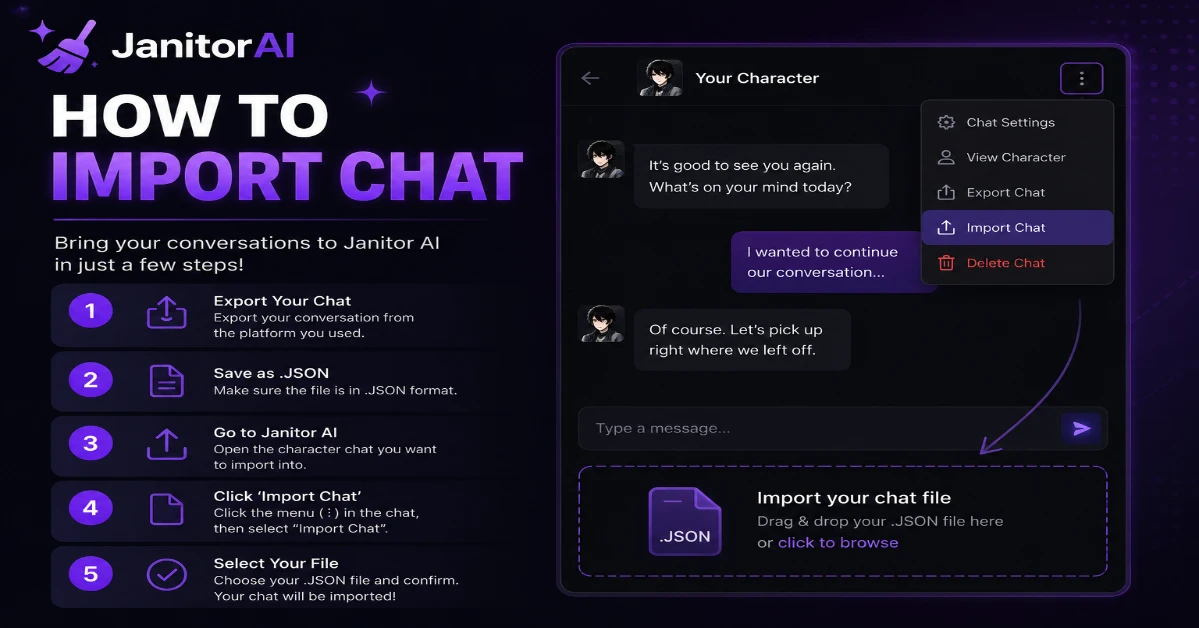
How to Import Chat in Janitor AI Step by Step
The exact method depends on where your conversation originated.
Method 1: Import Previously Exported Janitor AI Chats
If you previously created a backup, follow these steps:
Step 1: Locate Your Exported Chat File
Find your exported conversation file on your computer or mobile device.
Typical formats include:
- JSON
- TXT
- PNG metadata files
- Character backup files
Step 2: Log in to Janitor AI
Open your Janitor AI account and access the character associated with the conversation.
Step 3: Check Available Import Options
Some versions or community-supported tools may provide:
- Import Chat
- Restore Session
- Upload Conversation
Select the appropriate option.
Step 4: Upload the File
Choose your backup file and begin the import process.
Step 5: Verify Imported Messages
Open the restored conversation and confirm:
- Messages appear correctly.
- Character memory is intact.
- Formatting remains consistent.
How to Import Janitor AI Characters to SillyTavern
Many users search for How to import Janitor AI characters to SillyTavern because SillyTavern offers additional customization.
Follow these steps:
- Export your character from Janitor AI.
- Save the character card (.png or .json).
- Open SillyTavern.
- Navigate to the Characters section.
- Select Import Character.
- Upload the downloaded character file.
- Verify personality settings after import.
Practical Experience
During testing, imported character personalities usually transfer correctly. However, advanced settings such as jailbreak prompts or custom lorebooks occasionally require manual adjustment after import.
Janitor AI Export Chat: How to Create a Backup
Before importing anything, exporting chats is strongly recommended.
Why Export Conversations?
Benefits include:
- Prevent accidental data loss.
- Move chats between devices.
- Archive favorite roleplays.
- Continue conversations in other platforms.
Steps to Export Chat
- Open your conversation.
- Access settings or menu options.
- Locate the export feature.
- Choose your preferred file format.
- Download the backup.
Some users rely on browser extensions or scripts if native export options are unavailable.
According to data management best practices recommended by the National Institute of Standards and Technology (NIST), maintaining regular backups significantly reduces data loss risks.
Janitor AI Import Character Explained
Importing a character differs from importing a conversation.
Character Import Usually Includes:
- Personality traits
- Greeting messages
- Example dialogues
- Character definitions
- System prompts
Character Import Does Not Usually Include:
- Previous chat history
- User memories
- Session-specific context
Many beginners mistakenly assume importing a character restores old chats. It does not.
Janitor AI Import to SillyTavern: Complete Workflow
For users migrating from Janitor AI to SillyTavern:
Recommended Workflow
- Export character from Janitor AI.
- Export or save conversation history.
- Install SillyTavern.
- Import character card.
- Import chat JSON if supported.
- Connect your preferred AI model.
- Resume chatting.
Compatibility Overview
| Platform | Character Import | Chat Import |
| Janitor AI | Yes | Limited |
| SillyTavern | Yes | Yes |
| TavernAI | Yes | Yes |
| KoboldAI | Partial | Partial |
Using a Janitor AI Chat Downloader
A Janitor AI Chat Downloader is a third-party utility that saves conversations for backup purposes.
Typical features include:
- Download entire chat histories.
- Save chats as JSON or TXT.
- Create local backups.
- Transfer conversations between systems.
Important Safety Note
Use only reputable tools.
Before installing extensions or scripts:
- Review user feedback.
- Check source code if possible.
- Avoid requesting unnecessary permissions.
The Cybersecurity and Infrastructure Security Agency (CISA) recommends downloading browser extensions only from trusted publishers.
What Is a Janitor AI Scraper?
A Janitor AI scraper extracts information from public or private conversations.
Some users employ scrapers to:
- Archive chats.
- Analyze conversation patterns.
- Export large datasets.
However, scraping may conflict with platform policies.
Always review Janitor AI’s current terms of service before using automated extraction tools.
According to industry research published by the Electronic Frontier Foundation (EFF), users should carefully evaluate privacy implications before sharing or exporting AI-generated conversations.
How to Duplicate Chat in Janitor AI
Users often ask about Janitor AI duplicate chat functionality.
If native duplication exists:
- Open the conversation.
- Select options or settings.
- Click Duplicate or Clone Chat.
- Rename the copied session.
If duplication is unavailable:
- Export the conversation.
- Create a new chat.
- Re-import the backup.
This approach preserves original conversations while allowing alternative story paths.
Common Problems When Importing Chats
Unsupported File Format
Ensure the file format is compatible.
Supported formats commonly include:
- JSON
- PNG character cards
- TXT archives
Missing Conversation History
The imported file may contain only character data.
Corrupted Backup File
Try opening the file in a text editor to confirm data exists.
Character Behaves Differently
Imported characters sometimes lose:
- Memory settings
- API configurations
- Lorebook entries
Reconfigure these settings manually if needed.
Best Practices for Managing Janitor AI Chats
To avoid future issues:
- Export important conversations weekly.
- Maintain multiple backups.
- Store backups in cloud storage.
- Label files clearly.
- Keep character and chat backups separately.
- Test backups periodically.
These practices mirror general data preservation recommendations from NIST and industry security frameworks.
Conclusion
Learning how to import chat in Janitor AI becomes much easier once you understand the difference between conversations, character files, and backups.
Key Takeaways
- Chat imports and character imports are different.
- Always export important conversations regularly.
- Verify file compatibility before importing.
- Use third-party tools cautiously.
- Maintain multiple backups for safety.
Want more Janitor AI tutorials, AI tool guides, and troubleshooting tips? Subscribe to our newsletter and never miss the latest updates.
FAQ Section
Direct chat importing depends on the current Janitor AI version and available features. Some users rely on exports, backups, or compatible third-party tools. Always verify whether the platform currently supports importing your specific file format.
Open your conversation, access settings, and look for an export or download option. If unavailable, some users utilize trusted browser tools or community-supported utilities to save conversation histories.
Yes. SillyTavern generally supports importing conversation files and character cards. The success rate depends on file compatibility and the export format used.
Janitor AI commonly uses JSON-based conversation structures and PNG character cards containing embedded metadata. Support varies based on updates and third-party tools.
No. Character imports usually transfer personality settings only. Previous conversations must be exported and imported separately if supported.
Some are safe, while others may present privacy risks. Use tools from reputable developers, review permissions carefully, and avoid software requesting unnecessary account access.