
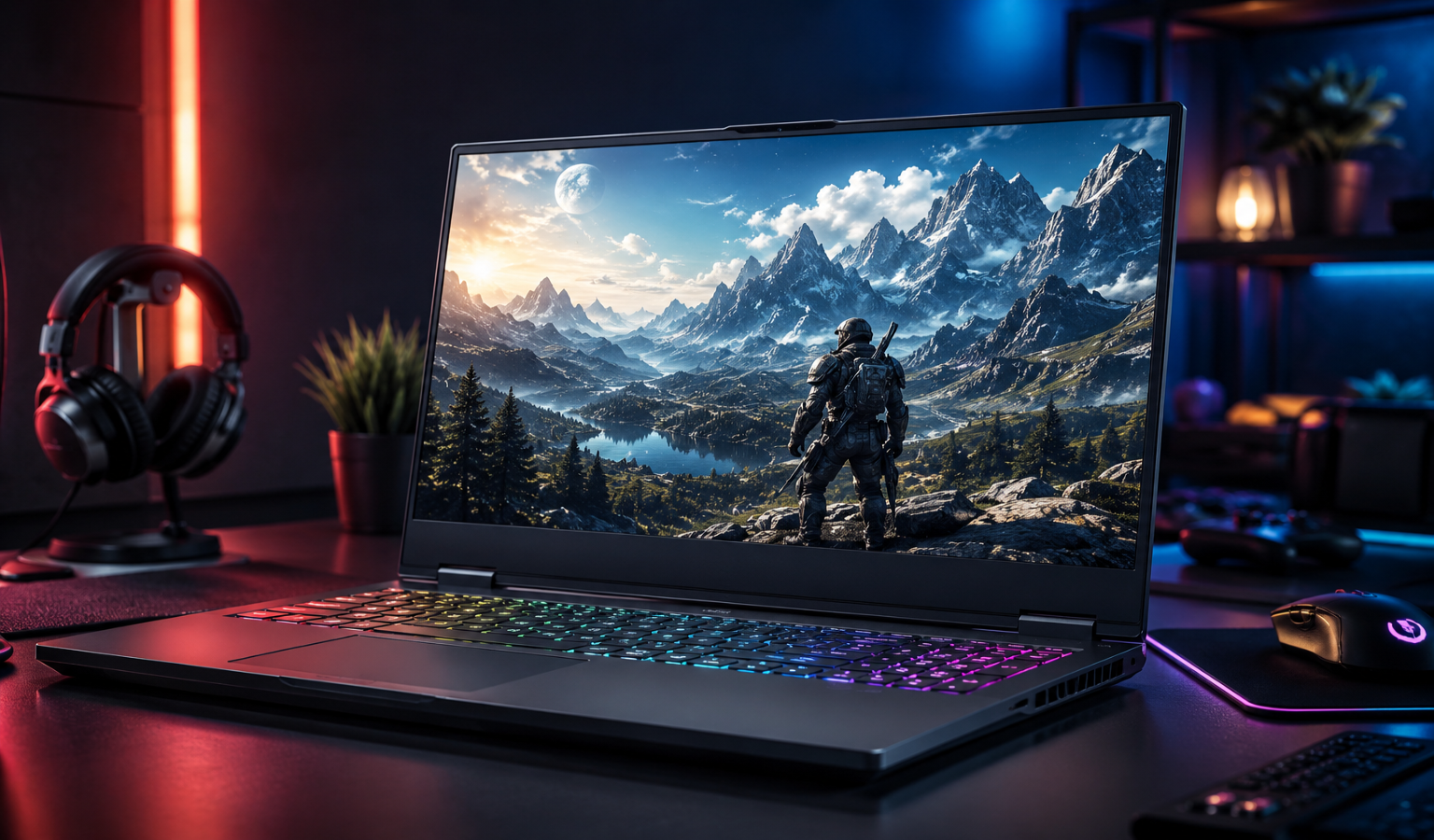
How to optimize gaming laptop for 4k gaming starts with understanding the demands of ultra-high-resolution gameplay. Gaming in 4K delivers stunning visuals, sharper details, and a more immersive experience. However, many gamers struggle to achieve smooth performance when playing at ultra-high resolutions. If you are wondering how to optimize a gaming laptop for 4k, you are in the right place.
Modern gaming laptops are powerful, but 4K gaming demands significant GPU, CPU, RAM, and storage resources. Without proper optimization, you may experience frame drops, overheating, stuttering, and reduced responsiveness.
This guide explains everything you need to know about how to optimize gaming laptop for 4k gaming, improve frame rates, reduce lag, and enjoy a smoother gaming experience without immediately upgrading your hardware.
Why 4K Gaming Is Demanding
Before learning how to optimize your gaming laptop for 4K, it is important to understand why 4K gaming requires so much power. Unlike lower resolutions such as 1080p or 1440p, 4K gaming demands that your hardware render a significantly larger number of pixels in real time. This increased workload places heavy pressure on the graphics card, requires more video memory, and can also impact CPU performance depending on the game. As visual settings such as ray tracing, high-resolution textures, and advanced lighting effects are enabled, the system must work even harder to maintain smooth frame rates. Understanding these demands will help you make smarter optimization decisions and achieve the best balance between image quality and gaming performance.
A standard Full HD resolution displays:
- 1920 × 1080 pixels
- Around 2 million pixels
A 4K resolution displays:
- 3840 × 2160 pixels
- More than 8 million pixels
This means your graphics card must process four times more pixels compared to 1080p gaming.
As a result:
- GPU workload increases
- VRAM usage rises
- Heat generation grows
- Battery drains faster
- FPS may drop significantly
Check Your Laptop Hardware First
The first step in optimizing a gaming laptop for 4K is understanding your hardware limitations.
GPU Requirements
For smooth 4K gaming, modern GPUs such as:
- RTX 4070 Laptop
- RTX 4080 Laptop
- RTX 4090 Laptop
- Radeon RX 7900M
perform much better than older graphics cards.
CPU Requirements
A strong processor helps avoid bottlenecks.
Recommended CPUs include:
- Intel Core i7
- Intel Core i9
- AMD Ryzen 7
- AMD Ryzen 9
RAM Requirements
For modern AAA games:
- Minimum: 16GB RAM
- Recommended: 32GB RAM
Storage Requirements
Install games on:
- NVMe SSD
- PCIe Gen4 SSD
This reduces loading times and texture streaming issues.
Update Graphics Drivers
One of the easiest ways to optimize gaming laptop performance for 4K is updating GPU drivers.
Manufacturers frequently release:
- Performance improvements
- Game-specific optimizations
- Stability fixes
- DLSS enhancements
Always download the latest drivers from:
- NVIDIA GeForce Experience
- AMD Adrenalin Software
Updated drivers can improve FPS significantly in newly released games.
Enable DLSS, FSR, or XeSS
AI upscaling technology is one of the biggest breakthroughs in 4K gaming.
NVIDIA DLSS
DLSS renders the game at a lower resolution and uses AI to upscale it to 4K.
Benefits include:
- Higher FPS
- Better image quality
- Reduced GPU load
AMD FSR
FSR works similarly and supports a wide range of GPUs.
Benefits include:
- Improved performance
- Increased frame rates
- Better efficiency
Intel XeSS
XeSS is another upscaling technology available in many modern games.
If your goal is learning how to optimize gaming laptop for 4k gaming, enabling these technologies should be your first priority.
Adjust In-Game Graphics Settings
Many gamers simply choose Ultra settings for everything.
This often wastes performance.
Instead, optimize individual settings.
Lower Shadow Quality
Shadows consume significant GPU resources.
Switch from:
- Ultra → High
- High → Medium
Visual differences are often minor.
Reduce Ray Tracing
Ray tracing looks amazing but is extremely demanding.
Try:
- Medium Ray Tracing
- Low Ray Tracing
- Ray Tracing Off
You can gain many extra frames.
Lower Volumetric Effects
Effects like:
- Fog
- Smoke
- Clouds
can dramatically impact FPS.
Lowering these settings often provides noticeable performance improvements.
Reduce Ambient Occlusion
This setting enhances depth perception but can be expensive.
Try medium settings for better performance.
Use Performance Power Mode
Many gaming laptops limit performance to save power.
Switch Windows to maximum performance.
Steps:
- Open Settings
- Power & Battery
- Select Best Performance
This allows the CPU and GPU to operate at higher performance levels.
Keep Your Laptop Cool
Heat is one of the biggest enemies of 4K gaming.
When temperatures rise:
- CPU throttles
- GPU throttles
- FPS decreases
Use a Cooling Pad
A quality cooling pad helps:
- Improve airflow
- Reduce temperatures
- Maintain stable performance
Clean Air Vents
Dust accumulation blocks airflow.
Clean:
- Fans
- Air vents
- Exhaust openings
every few months.
Raise the Rear of the Laptop
Even a slight elevation improves cooling efficiency.
Close Background Applications
Background programs consume system resources.
Before gaming:
Close:
- Chrome tabs
- Discord overlays
- Streaming software
- Updaters
- File synchronization tools
This frees memory and CPU resources for your games.
Optimize Windows for Gaming
Windows includes several gaming features.
Enable Game Mode
Game Mode prioritizes gaming processes.
To activate:
- Settings
- Gaming
- Game Mode
- Turn On
Disable Startup Programs
Many applications launch automatically.
Disable unnecessary startup items to reduce background usage.
Turn Off Visual Effects
Windows animations consume resources.
Disable:
- Transparency effects
- Animations
- Visual enhancements
for slightly better performance.
Upgrade Your RAM
If your laptop supports upgrades, increasing RAM can improve performance.
Benefits include:
- Better multitasking
- Reduced stuttering
- Faster texture loading
Moving from:
- 8GB to 16GB
- 16GB to 32GB
can noticeably improve gaming smoothness.
Optimize Storage Performance
Storage speed affects loading times and texture streaming.
Maintain Free Space
Keep at least:
- 15% to 20% free storage
on your SSD.
Install Games on SSD
Avoid installing modern games on slow hard drives.
Use NVMe SSD storage whenever possible.
Overclock Carefully
Advanced users may consider:
- GPU overclocking
- Memory overclocking
Tools include:
- MSI Afterburner
- ASUS GPU Tweak
Benefits:
- Higher FPS
- Better performance
However:
- Monitor temperatures
- Test stability carefully
Improper overclocking can cause crashes.
Use External 4K Monitors Correctly
Many gamers connect gaming laptops to 4K displays.
For the best experience:
Use DisplayPort or HDMI 2.1
These standards support:
- Higher refresh rates
- Better bandwidth
- Improved image quality
Enable High Refresh Rates
Many users forget this step.
Check:
Settings → Display → Advanced Display
and select the highest available refresh rate.
Optimize VRAM Usage
Modern games consume large amounts of video memory.
If VRAM usage becomes excessive:
Reduce:
- Texture quality
- Texture filtering
- Ray tracing settings
This helps prevent stuttering and frame spikes.
Monitor Performance Regularly
Performance monitoring helps identify bottlenecks.
Useful tools include:
- MSI Afterburner
- HWMonitor
- HWiNFO
- NVIDIA Performance Overlay
Track:
- GPU temperature
- CPU temperature
- VRAM usage
- FPS
- CPU utilization
These metrics reveal performance issues quickly.
Best Graphics Settings for Smooth 4K Gaming
A balanced configuration often works better than maximum settings.
Recommended setup:
- Texture Quality: High
- Shadows: Medium
- Ray Tracing: Medium or Off
- DLSS/FSR: Quality Mode
- Ambient Occlusion: Medium
- Volumetrics: Medium
- Anti-Aliasing: High
This combination usually delivers excellent visuals and stable frame rates.
Common Mistakes to Avoid
Many gamers make these errors.
Avoid:
- Gaming on battery power
- Using outdated drivers
- Blocking laptop vents
- Running unnecessary background apps
- Keeping Ultra settings everywhere
- Ignoring temperature monitoring
Correcting these mistakes can significantly improve performance.
Future-Proofing Your Gaming Laptop for 4K
As games become more demanding, future-proofing is important.
Consider:
- Upgrading RAM
- Using faster SSDs
- Maintaining proper cooling
- Updating drivers regularly
- Using AI upscaling technologies
These steps help extend the lifespan of your gaming laptop.
Final Thoughts
Learning how to optimize gaming laptop for 4k is not just about upgrading hardware. Smart optimization can dramatically improve frame rates, reduce overheating, and create a smoother gaming experience.
Start by updating drivers, enabling DLSS or FSR, adjusting graphics settings, improving cooling, and optimizing Windows. These changes often provide the biggest performance gains with little or no cost.
With the right settings and maintenance, even mid-range gaming laptops can deliver impressive 4K gaming performance and an enjoyable experience in today’s demanding games. Gemini AI Janitor
Frequently Asked Questions (FAQ)
Yes. Many modern gaming laptops can handle 4K gaming. Models with RTX 4070, RTX 4080, RTX 4090, or similar high-end GPUs deliver the best results. Performance depends on the game’s requirements and graphics settings.
To optimize a gaming laptop for 4K gaming, update graphics drivers, enable DLSS or FSR, reduce demanding graphics settings, close background applications, and keep the laptop cool. These steps can significantly improve FPS and stability.
Yes, 16GB RAM is sufficient for most modern games. However, 32GB RAM provides better multitasking, smoother gameplay, and improved performance in demanding AAA titles.
Yes. NVIDIA DLSS can dramatically improve 4K gaming performance by rendering games at a lower resolution and using AI to upscale the image. This increases FPS while maintaining excellent visual quality.
Lag can occur due to outdated drivers, insufficient GPU power, high temperatures, low RAM, background applications, or graphics settings that are too demanding. Optimizing these areas can help eliminate performance issues.
Not always. Ultra settings often reduce performance without providing major visual improvements. High settings combined with DLSS or FSR usually offer a better balance between image quality and frame rates.
Yes. A cooling pad can improve airflow and reduce laptop temperatures. Lower temperatures help prevent thermal throttling and maintain consistent gaming performance during long sessions.
The best laptop GPUs for 4K gaming include the NVIDIA RTX 4080 Laptop GPU and RTX 4090 Laptop GPU. These graphics cards provide high frame rates and support advanced technologies such as DLSS and ray tracing.
In many cases, yes. By optimizing graphics settings, enabling AI upscaling technologies, updating drivers, and reducing background processes, you can achieve better 4K performance without purchasing new hardware.
An SSD does not directly increase FPS, but it improves game loading times, texture streaming, and overall system responsiveness. NVMe SSDs provide the best gaming experience.
For modern 4K gaming, at least 8GB of VRAM is recommended. For the best experience in newer AAA games, 12GB to 16GB of VRAM is ideal.
Yes. If your laptop has powerful hardware, 4K gaming provides sharper visuals, greater detail, and a more immersive experience. However, you may need to optimize settings to maintain smooth frame rates.