
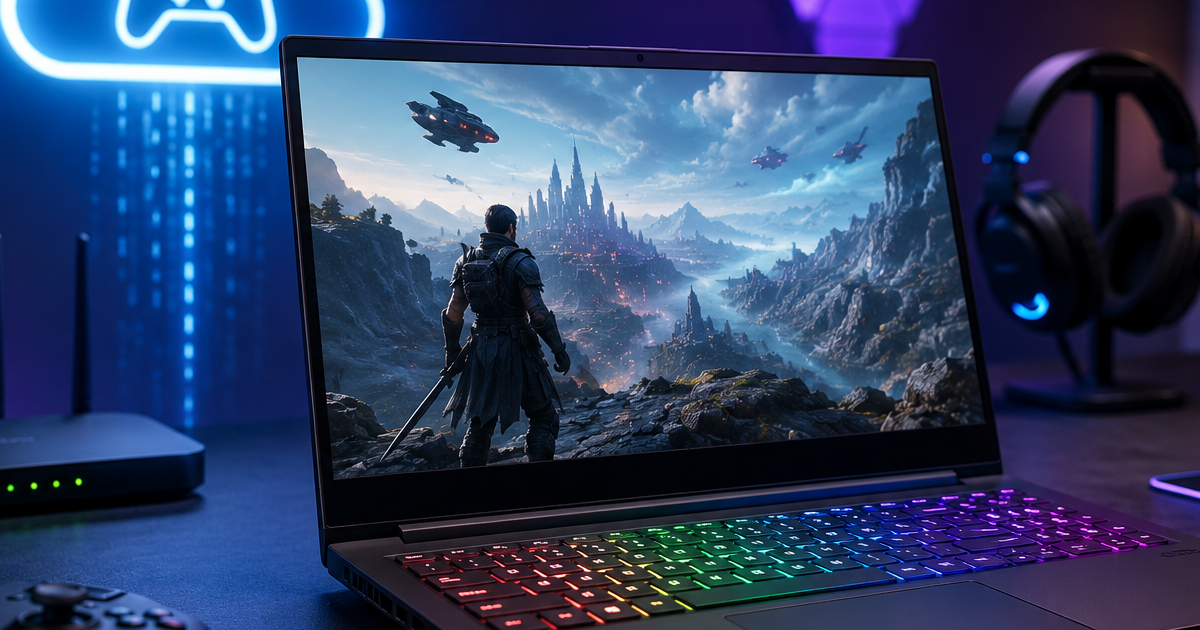
How to optimize gaming laptop for cloud gaming is a question many gamers ask when trying to achieve smoother gameplay and lower latency. Cloud gaming has changed the way people play games, allowing users to enjoy modern titles without needing the most expensive graphics card. Services like Xbox Cloud Gaming, GeForce NOW, and Amazon Luna stream games directly from powerful remote servers.
However, many users still experience lag, stuttering, blurry visuals, audio delays, and unstable connections while using cloud gaming services. These issues can make even the best games feel frustrating and unresponsive. In many cases, the problem is not the cloud gaming platform itself but the way the gaming laptop is configured. Outdated drivers, poor network settings, background applications, overheating, and incorrect power options can all negatively impact performance.
In this guide, you will learn the best methods to improve performance, reduce latency, and enjoy smoother gameplay on your gaming laptop.
Why Learning How to Optimize Gaming Laptop for Cloud Gaming Matters
Many gamers assume cloud gaming depends only on internet speed. That is not completely true. While a fast internet connection is essential, it is only one part of the overall experience. Your gaming laptop also plays a major role in determining how smoothly games run on cloud gaming platforms. Even if you have high-speed internet, poor laptop performance can still cause lag, stuttering, blurry visuals, delayed controls, and inconsistent gameplay. If your system is overloaded with background applications, outdated drivers, poor network settings, or power-saving features, your cloud gaming experience can suffer significantly.
Your gaming laptop still plays an important role because it handles:
- Video decoding
- Network communication
- Display output
- Audio processing
- Input response
An unoptimized laptop can create delays even when your internet connection is fast.
Benefits of optimization include:
- Lower input lag
- Better image quality
- Stable frame rates
- Reduced stuttering
- Improved battery efficiency
Check Your Internet Connection First
Before making any laptop changes, test your internet connection.
Cloud gaming requires:
- Minimum 15 Mbps for 720p gaming
- Minimum 25 Mbps for 1080p gaming
- 40 Mbps or higher for 4K gaming
More important than speed is latency.
Aim for:
- Ping below 40ms
- Stable connection
- Minimal packet loss
Use online speed testing tools to measure your performance.
Use Ethernet Whenever Possible
Wi-Fi works well, but Ethernet is better.
A wired connection offers:
- Lower latency
- Better stability
- Fewer signal interruptions
- Consistent bandwidth
If your gaming laptop has an Ethernet port, use it for cloud gaming sessions.
Update Your Operating System
One of the easiest ways to optimize gaming laptop for cloud gaming is keeping Windows updated.
Updates often include:
- Performance improvements
- Network optimizations
- Security fixes
- Driver compatibility updates
To update Windows:
- Open Settings
- Go to Windows Update
- Click Check for Updates
- Install available updates
Restart your laptop after updating.
Install the Latest Graphics Drivers
Even though cloud gaming streams video, graphics drivers still matter.
Updated GPU drivers help with:
- Hardware decoding
- Video rendering
- Display performance
- Reduced visual glitches
Whether you use NVIDIA, AMD, or Intel graphics, always install the latest driver version.
Enable Hardware Acceleration
Most cloud gaming platforms benefit from hardware acceleration.
This feature allows your GPU to process streamed video efficiently.
Benefits include:
- Lower CPU usage
- Smoother gameplay
- Better battery performance
- Improved visual quality
Enable hardware acceleration in:
- Browser settings
- Gaming applications
- Windows graphics settings
Optimize Power Settings for Maximum Performance
Power-saving modes can reduce gaming performance.
Switch to High Performance mode.
How to Change Power Mode
- Open Control Panel
- Select Power Options
- Choose High Performance
Or select:
Settings → System → Power & Battery → Best Performance
This prevents your CPU from throttling during gameplay.
Close Background Applications
Background programs consume valuable resources.
Before launching a cloud gaming session:
Close:
- Web browsers with many tabs
- Video editing software
- File syncing apps
- Torrent clients
- Unused launchers
This frees CPU, RAM, and network bandwidth.
Disable Startup Programs
Too many startup apps slow down your system.
To manage startup applications:
- Press Ctrl + Shift + Esc
- Open Startup Apps
- Disable unnecessary programs
This improves overall responsiveness.
Improve Wi-Fi Performance
If Ethernet is unavailable, optimize your wireless connection.
Use 5GHz or Wi-Fi 6
Modern routers support:
- 5GHz Wi-Fi
- Wi-Fi 6
- Wi-Fi 6E
These technologies provide:
- Faster speeds
- Lower latency
- Better signal stability
Avoid using older 2.4GHz networks whenever possible.
Position Yourself Near the Router
Distance affects cloud gaming quality.
For best performance:
- Stay in the same room
- Reduce wall interference
- Avoid crowded wireless channels
A stronger signal means smoother gameplay.
Adjust Display Settings
Display settings can affect cloud gaming responsiveness.
Use Higher Refresh Rates
Most gaming laptops support:
- 120Hz
- 144Hz
- 165Hz
- 240Hz
Enable the highest supported refresh rate.
To change refresh rate:
- Open Display Settings
- Advanced Display
- Select highest refresh rate
Benefits include:
- Smoother visuals
- Better motion clarity
- Improved responsiveness
Disable Unnecessary Visual Effects
Windows animations can consume resources.
Disable:
- Transparency effects
- Window animations
- Visual transitions
This creates a more responsive experience.
Optimize Browser Settings for Cloud Gaming
Many cloud gaming services run directly in browsers.
Browser optimization is important.
Use Modern Browsers
Recommended options:
- Google Chrome
- Microsoft Edge
- Opera GX
These browsers offer excellent video decoding support.
Clear Browser Cache
A cluttered cache may create issues.
Regularly clear:
- Cache
- Cookies
- Temporary files
This helps maintain smooth streaming performance.
Manage Laptop Temperatures
Heat can reduce performance.
When temperatures rise, laptops throttle CPU and GPU speeds.
Keep Cooling Systems Clean
Dust blocks airflow.
Regularly:
- Clean vents
- Remove dust buildup
- Use compressed air
Better cooling means stable performance.
Use a Cooling Pad
Cooling pads can reduce temperatures significantly.
Benefits include:
- Better airflow
- Lower thermal throttling
- Longer hardware lifespan
This is especially useful during long gaming sessions.
Optimize Network Settings
Advanced network tweaks can improve cloud gaming.
Disable Background Downloads
Pause:
- Windows updates
- Game downloads
- Cloud backups
- Streaming services
This ensures maximum bandwidth for gaming.
Prioritize Gaming Traffic
Many modern routers support Quality of Service (QoS).
QoS allows you to prioritize:
- Gaming traffic
- Video streaming
- Real-time communication
This reduces lag during cloud gaming sessions.
Use Gaming Mode in Windows
Windows includes a built-in Game Mode.
To enable it:
- Open Settings
- Select Gaming
- Turn Game Mode On
Benefits include:
- Reduced background activity
- Better resource allocation
- Improved gaming stability
This is one of the easiest ways to optimize gaming laptop for cloud gaming.
Upgrade Hardware Where Possible
Cloud gaming requires less hardware power than traditional gaming.
Still, certain upgrades can improve performance.
Increase RAM
If your laptop has:
- 8GB RAM → Upgrade to 16GB
Benefits include:
- Better multitasking
- Faster application switching
- Improved system responsiveness
Install an SSD
If you still use a hard drive, switch to an SSD.
Advantages include:
- Faster boot times
- Quicker loading
- Better overall system speed
Best Cloud Gaming Services to Test
After optimizing your gaming laptop, try these popular platforms:
- NVIDIA GeForce NOW
- Xbox Cloud Gaming
- Amazon Luna
- Boosteroid
- Shadow PC
Each service has different requirements and performance levels.
Test multiple platforms to find the one that works best with your setup.
Common Mistakes to Avoid
Many gamers unknowingly reduce cloud gaming performance.
Avoid:
- Using crowded public Wi-Fi
- Running multiple downloads
- Ignoring driver updates
- Playing far from the router
- Using battery-saving mode
- Allowing excessive heat buildup
Small mistakes can create noticeable lag.
Final Thoughts
Understanding how to optimize gaming laptop for cloud gaming can dramatically improve your gaming experience. Cloud gaming depends on more than internet speed. Your laptop, network settings, display configuration, and system optimization all play important roles.
Start by improving your internet connection. Update drivers and Windows regularly. Use Ethernet whenever possible. Enable hardware acceleration and high-performance power settings. Keep your laptop cool and free from unnecessary background tasks.
By following these steps, you can enjoy smoother gameplay, lower latency, better visuals, and a more responsive cloud gaming experience without investing in expensive hardware upgrades.
Frequently Asked Questions (FAQ)
To optimize your gaming laptop for cloud gaming, use a fast and stable internet connection, update your graphics drivers, enable hardware acceleration, close unnecessary background applications, and switch to High Performance power mode. These steps help reduce latency and improve streaming quality.
Yes. Internet speed is one of the most important factors for cloud gaming. Most services recommend at least 25 Mbps for 1080p gaming and 40 Mbps or more for 4K streaming. A stable connection with low latency is equally important.
Yes. A gaming laptop can improve cloud gaming performance because it typically includes a faster processor, better cooling, a high-refresh-rate display, and dedicated graphics hardware for efficient video decoding.
Ethernet is the better option because it provides lower latency, more stable speeds, and fewer connection interruptions. If Ethernet is unavailable, use a 5GHz or Wi-Fi 6 network for the best wireless performance.
Yes. Upgrading from 8GB to 16GB of RAM can improve multitasking, reduce system slowdowns, and make cloud gaming applications run more smoothly.
Blurry visuals are often caused by slow internet speeds, high network congestion, packet loss, or low streaming quality settings. Optimizing your network and laptop settings can help improve image quality.
Yes. Windows Game Mode reduces background activity and prioritizes gaming-related processes, which can improve overall system responsiveness during cloud gaming sessions.
You can reduce lag by using a wired Ethernet connection, closing background programs, updating drivers, enabling hardware acceleration, and connecting to a low-latency network.
A higher refresh rate such as 120Hz, 144Hz, or 165Hz can provide smoother visuals and a more responsive gaming experience compared to a standard 60Hz display.
Popular options include NVIDIA GeForce NOW, Xbox Cloud Gaming, Amazon Luna, Boosteroid, and Shadow PC. The best choice depends on your game library, internet connection, and performance requirements.