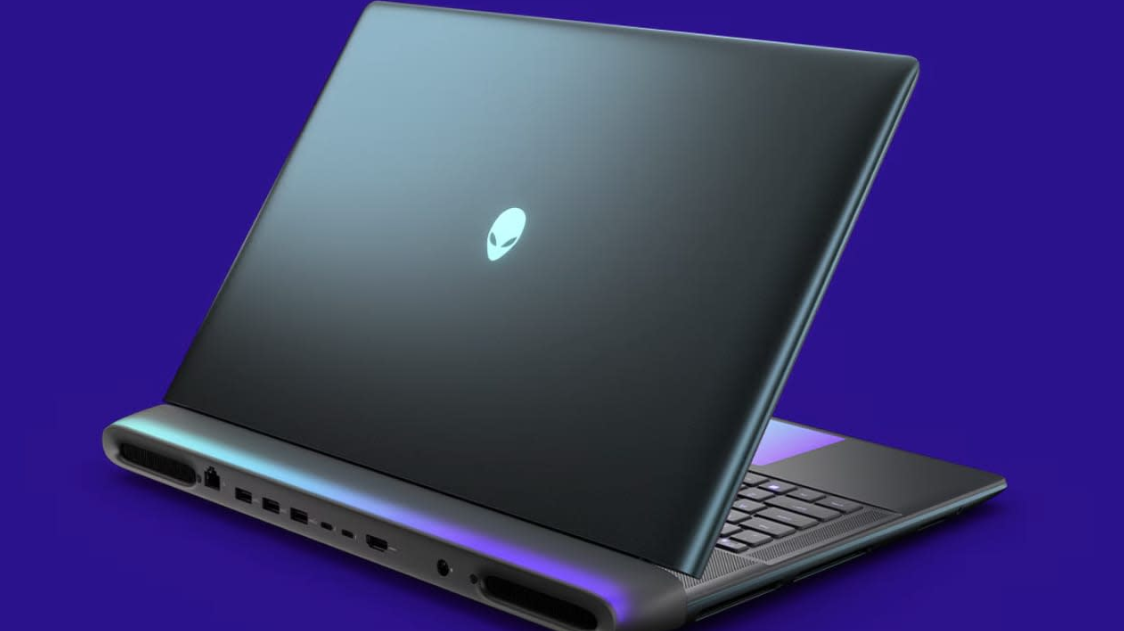
Virtual Reality gaming is one of the most demanding experiences for any computer system. Many gamers ask how to optimize gaming laptop for VR to achieve smooth gameplay, higher FPS, and an immersive experience without lag or motion sickness. A gaming laptop can run VR successfully, but only if it is properly optimized. Unlike desktop PCs, laptops have thermal limits, power restrictions, and hardware constraints that make optimization even more critical.
In this complete guide, you’ll learn how to optimize a gaming laptop for VR, covering hardware checks, Windows optimization, GPU settings, VR headset configuration, thermal management, and advanced performance tweaks. Whether you are using Oculus, Meta Quest (via Link), HTC Vive, or Valve Index, this guide will help you get the best VR performance possible.
Table of Contents
ToggleUnderstanding VR Requirements Before Optimization
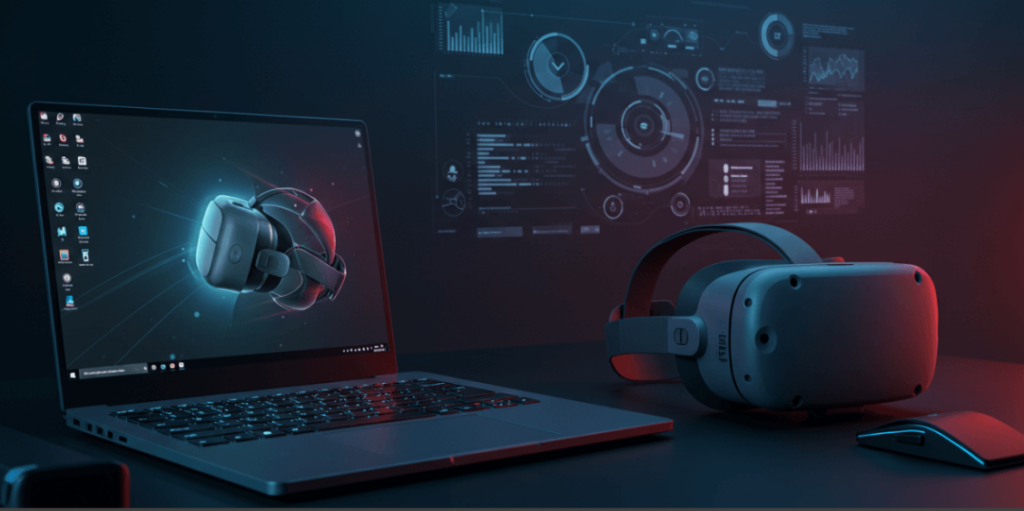
Before learning how to optimize gaming laptop for VR, it’s essential to clearly understand what Virtual Reality demands from your system. VR is far more intensive than traditional gaming because your laptop must render two high-resolution images simultaneously—one for each eye—while maintaining a stable, high frame rate to prevent lag and motion sickness. This means your GPU, CPU, RAM, and storage all work at maximum capacity for extended periods. Even minor performance drops can break immersion or cause discomfort, which is why VR requires consistent power, fast data processing, low latency, and excellent thermal management. Understanding these demands helps you identify hardware limitations early and apply the right optimizations for a smooth, immersive, and enjoyable VR gaming experience.
Minimum VR Hardware Requirements
Most VR platforms require:
- GPU: NVIDIA GTX 1660 / RTX 2060 or higher
- CPU: Intel i5 9th Gen / AMD Ryzen 5 or better
- RAM: 16GB recommended
- Ports: USB 3.0 and DisplayPort/USB-C
- OS: Windows 10 or Windows 11 (64-bit)
If your laptop barely meets minimum specs, optimization becomes essential to avoid stuttering and frame drops.
Check VR Compatibility of Your Gaming Laptop
Use VR Compatibility Tools
Before diving into optimization, it’s essential to first confirm that your gaming laptop is truly capable of handling VR workloads. Virtual Reality is far more demanding than standard gaming because it renders high-resolution visuals in real time for two displays while maintaining a stable, high frame rate to prevent motion sickness. Even laptops with powerful GPUs can struggle if their hardware, drivers, or power limits are not properly aligned for VR use. That’s why the first step in learning how to optimize a gaming laptop for VR is to use dedicated VR compatibility and performance tools. These tools help you quickly evaluate whether your system meets VR requirements, highlight performance bottlenecks, and identify areas—such as GPU power limits, CPU performance, or driver support—that need optimization before you start fine-tuning settings.
- Use SteamVR Performance Test
- Check Meta Quest Link compatibility tool
- Review your laptop’s GPU power limit (TGP)
This step confirms whether your system can handle VR and identifies weak points that need optimization.
Update Everything: The First Step to Optimize Gaming Laptop for VR
Update GPU Drivers
Outdated GPU drivers are one of the biggest and most overlooked causes of poor VR performance. Virtual Reality platforms like SteamVR and Meta Quest rely heavily on the latest driver optimizations to deliver smooth frame rates, accurate motion tracking, and low-latency rendering. Old drivers often lack VR-specific enhancements, bug fixes, and performance updates, which can result in stuttering, screen tearing, tracking issues, frequent crashes, or even VR headset disconnection. In many cases, a gaming laptop may have powerful hardware, but outdated GPU drivers prevent it from reaching its full VR potential. Keeping your GPU drivers up to date ensures maximum compatibility with VR headsets, improves overall stability, unlocks new performance improvements, and provides a noticeably smoother and more immersive VR experie
- Download latest NVIDIA Game Ready Drivers
- Use Clean Installation for best results
Update Windows
Ensure your system is fully updated:
- Windows updates improve VR stability
- Fix DirectX and system-level performance issues
Updating software is a simple but powerful step in how to optimize gaming laptop for VR.
Optimize Windows Settings for VR Performance
Enable High Performance Power Mode
VR requires maximum and consistent power delivery to run smoothly, as even small drops in CPU or GPU performance can cause frame drops, stuttering, or motion sickness. Unlike regular gaming, VR workloads are continuous and extremely sensitive to throttling, which is common on laptops using balanced or power-saving modes. If your system limits power to conserve battery or reduce heat, VR performance will suffer immediately. That’s why setting your laptop to a high-performance power mode is a critical step when learning how to optimize a gaming laptop for VR. By enabling High Performance or Ultimate Performance, you allow the CPU and GPU to run at their full potential, ensuring stable frame rates, reduced latency, and a far smoother VR experience.
- Go to Control Panel → Power Options
- Select High Performance or Ultimate Performance
This prevents CPU and GPU throttling during VR sessions.
Disable Background Apps
Background processes steal system resources.
- Turn off startup apps
- Close unnecessary software (browsers, launchers)
Reducing background load improves FPS and stability in VR games.
NVIDIA Control Panel Optimization for VR
Best NVIDIA Settings for VR Gaming
Open NVIDIA Control Panel and apply these settings:
- Power Management Mode: Prefer Maximum Performance
- Low Latency Mode: Ultra
- Texture Filtering – Quality: High Performance
- Vertical Sync: Off
- Threaded Optimization: On
These changes directly improve GPU efficiency and are essential when learning how to optimize gaming laptop for VR.
Optimize Graphics Settings Inside VR Platforms
SteamVR Optimization
In SteamVR settings:
- Reduce Render Resolution (start at 100%)
- Disable Motion Smoothing if causing stutter
- Lower Supersampling for weaker GPUs
Oculus / Meta Quest Link Settings
- Set refresh rate to 72Hz or 80Hz instead of 120Hz
- Lower render resolution for smoother gameplay
Lowering resolution slightly can drastically increase VR smoothness.
Game-Specific VR Optimization Settings
Each VR game has its own settings. For best performance:
- Lower shadows and reflections
- Disable motion blur
- Reduce anti-aliasing
- Use medium textures instead of ultra
Fine-tuning individual games is a critical step in how to optimize gaming laptop for VR.
Thermal Management: Prevent Overheating in VR Gaming
Why Heat Matters in VR
VR pushes your laptop at full load for long periods. Overheating causes:
- Thermal throttling
- FPS drops
- Sudden stutters
Cooling Optimization Tips
- Use a high-quality cooling pad
- Clean laptop fans and vents
- Keep laptop on a flat surface
- Avoid gaming in hot environments
Keeping temperatures under control ensures consistent VR performance.
Undervolting and CPU Optimization (Advanced)
CPU Undervolting
Undervolting reduces heat without reducing performance.
- Use tools like ThrottleStop or Intel XTU
- Lower voltage carefully and test stability
RAM and Storage Optimization for VR
Upgrade RAM if Possible
VR games benefit from higher memory:
- 16GB RAM is recommended
- Dual-channel RAM improves performance
Use SSD for VR Games
Install VR games on an NVMe or SSD:
- Faster loading
- Reduced stuttering
- Better asset streaming
Storage speed plays a hidden but important role in VR optimization.
Optimize Laptop Display and External Connections
Use External Monitor (Optional)
Some VR headsets work better when:
- Laptop lid is closed
- External monitor is connected
This allows the GPU to focus more resources on VR rendering.
Correct GPU Selection
Ensure VR apps use the dedicated GPU, not integrated graphics:
- Set preferred GPU in NVIDIA Control Panel
- Check Windows Graphics Settings
Network and USB Optimization for VR
USB Power Management
Disable USB power saving:
- Device Manager → USB Controllers
- Disable power-saving options
This prevents VR tracking issues and random disconnects.
Stable Internet for Online VR
If playing online VR:
- Use wired Ethernet
- Close background downloads
Common Mistakes to Avoid When Optimizing Gaming Laptop for VR
- Playing VR on battery power
- Using outdated GPU drivers
- Running VR with thermal throttling
- Using ultra settings on mid-range GPUs
- Ignoring headset software updates
Avoiding these mistakes is just as important as optimization itself.
How to Optimize Gaming Laptop for VR on Low-End Systems
- If your laptop is entry-level:
- Use lowest VR graphics presets
- Reduce headset refresh rate
- Close all background apps
- Focus on lightweight VR games
Even budget gaming laptops can handle VR with proper tuning.
Conclusion: Mastering How to Optimize Gaming Laptop for VR
Learning how to optimize gaming laptop for VR is the key to unlocking a smooth, immersive, and enjoyable virtual reality experience. While gaming laptops have limitations compared to desktops, proper optimization can deliver impressive VR performance even on mid-range systems. By combining software tweaks, hardware management, and smart VR settings, you can eliminate lag, reduce motion sickness, and enjoy next-level gaming in 2025.
If you consistently apply these optimization techniques, your gaming laptop will be fully VR-ready—powerful, stable, and future-proof for upcoming VR titles.
Frequently Asked Questions (FAQ)
Q1. How do I know if my gaming laptop is VR-ready?
You can check VR readiness by using tools like SteamVR Performance Test and the Meta Quest Link compatibility tool. These tools analyze your GPU, CPU, and system performance to confirm whether your laptop can handle VR smoothly.
Q2. Why is VR more demanding than normal gaming?
VR requires rendering high-resolution visuals for two displays simultaneously while maintaining high and stable frame rates. This makes VR far more demanding on the GPU, CPU, and memory compared to standard PC gaming.
Q3. How to optimize a gaming laptop for VR performance?
To optimize a gaming laptop for VR:
- Update GPU drivers
- Enable High Performance or Ultimate Performance power mode
- Disable background apps
- Adjust VR and in-game graphics settings
Ensure proper cooling and airflow
These steps significantly improve FPS and stability.
Q4. Do outdated GPU drivers affect VR performance?
Yes, outdated GPU drivers are one of the biggest causes of poor VR performance. Updated drivers include VR optimizations, bug fixes, and better headset compatibility, resulting in smoother gameplay and fewer crashes.
Q5. Which power mode is best for VR on a laptop?
High Performance or Ultimate Performance mode is best for VR. These modes prevent CPU and GPU throttling and ensure maximum power delivery during VR sessions.
Q6. Does closing background apps improve VR FPS?
Yes. Background apps consume CPU, RAM, and disk resources. Closing unnecessary software like browsers, launchers, and startup apps can noticeably improve FPS and reduce VR stuttering.
Q7. Can VR run on a gaming laptop without overheating?
Yes, but proper cooling is essential. Use a cooling pad, clean vents regularly, and avoid thermal throttling by maintaining good airflow. Overheating can severely reduce VR performance.
Q8. Is more RAM important for VR gaming?
Yes. While 8GB RAM is the minimum, 16GB RAM is recommended for smooth VR performance, especially when running VR platforms and games simultaneously.
Q9. Does GPU TGP matter for VR laptops?
Absolutely. A higher GPU TGP (Total Graphics Power) allows the GPU to deliver better VR performance. Low TGP limits can reduce FPS even on powerful GPUs.
Q10. Can I use VR while on battery power?
No. VR should always be used while plugged in. Battery mode limits power to the CPU and GPU, causing severe performance drops and instability.