If you are wondering how to find hidden apps on iPhone, you are not alone. Apple’s iOS offers multiple ways to hide apps for privacy, parental control, or decluttering the Home Screen. However, these hidden apps can sometimes cause confusion—especially if you suspect an app is missing, restricted, or secretly installed. In this complete guide, you’ll learn how to find hidden apps on iPhone, uncover apps hidden using iOS features, Screen Time restrictions, App Library tricks, and even third-party methods.
This guide is beginner-friendly, professional, and updated with modern iOS practices.
Table of Contents
ToggleWhy Apps Get Hidden on iPhone
Before learning how to find hidden apps on iPhone, it’s important to understand why apps disappear in the first place. Many iPhone users assume a missing app has been deleted, but in reality, iOS offers several built-in features that can hide apps without uninstalling them. Apple focuses heavily on privacy, organization, and parental control, which means apps can be intentionally or automatically hidden through system settings. Whether you removed an app from the Home Screen, enabled Screen Time restrictions, updated iOS, or customized Home Screen pages, the app may still be installed on your device but not visible at first glance. Understanding these reasons makes it much easier to identify where the app went and apply the correct method to recover it quickly and safely.
Common Reasons Apps Are Hidden
- Apps manually removed from the Home Screen
- Screen Time restrictions enabled
- App Library auto-organization
- Hidden app pages
- App Store purchase hiding
- iOS bugs or system glitches
- Parental control settings
Hidden apps are usually still installed—you just can’t see them.
How to Find Hidden Apps on iPhone Using Spotlight Search
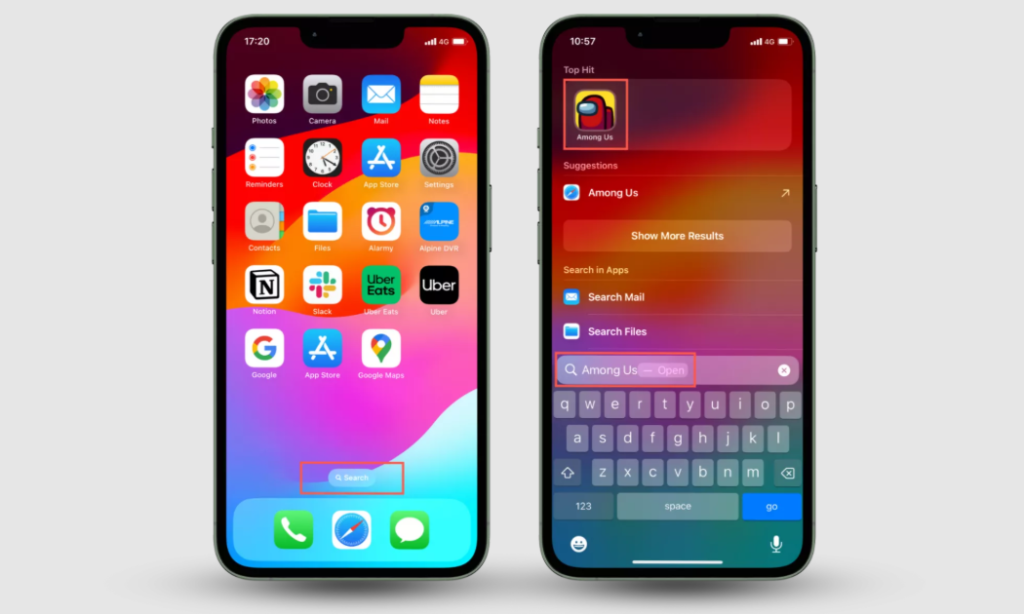
The fastest and most effective way to learn how to find hidden apps on iPhone is by using Spotlight Search, a powerful built-in feature that scans your entire device in seconds. Spotlight can locate apps even when they are removed from the Home Screen, hidden inside folders, restricted by layout changes, or buried within the App Library. Many users overlook this feature, but it remains the most reliable solution for instantly checking whether an app is still installed on your iPhone. If an app appears in Spotlight Search, it confirms that the app is not deleted—it is simply hidden from plain sight and can be accessed immediately with a single tap.
Steps:
- Unlock your iPhone
- Swipe down from the center of the Home Screen
- Type the app name in the search bar
- If the app appears, tap to open it
If the app opens, it is installed but hidden from view.
How to Find Hidden Apps on iPhone via App Library
The App Library is one of the most powerful yet often overlooked features when learning how to find hidden apps on iPhone. Introduced to help users organize their devices automatically, the App Library stores every installed app on your iPhone—including those that are hidden from the Home Screen. Even if you removed an app icon, misplaced it, or allowed iOS to auto-organize your apps, the App Library still keeps everything accessible in one centralized location. This makes it an ideal solution for quickly locating missing or hidden apps without changing system settings or reinstalling anything.
Steps:
- Swipe left past all Home Screen pages
- Open App Library
- Browse categories or use the search bar
- Locate the hidden app
Restore App to Home Screen:
- Long-press the app
- Tap Add to Home Screen
This method is ideal if you removed an app icon but didn’t uninstall it.
How to Find Hidden Apps on iPhone Using Settings
Sometimes apps are not truly missing but are restricted or disabled through iPhone system settings, which can make them appear hidden. This often happens due to privacy controls, permission changes, Screen Time limits, or security preferences applied intentionally or automatically by iOS. When learning how to find hidden apps on iPhone, checking the Settings app is a crucial step because it displays a complete list of all installed applications on your device—regardless of whether they appear on the Home Screen or App Library. If an app is listed here, it confirms that the app is installed and functioning but hidden due to configuration or access limitations.
Check Installed Apps:
- Go to Settings
- Scroll down to see the full list of installed apps
- Tap any app to check permissions
If the app appears here, it is installed but hidden elsewhere.
How to Find Hidden Apps on iPhone Using Screen Time
Screen Time is one of the most common reasons apps disappear on iPhone, especially for users who have enabled parental controls, productivity limits, or content restrictions. Apple’s Screen Time feature is designed to manage app usage and protect privacy, but it can also unintentionally hide apps by restricting access based on time limits, age ratings, or app categories. When learning how to find hidden apps on iPhone, checking Screen Time settings is essential because restricted apps may still be installed on your device but completely invisible on the Home Screen and App Library.
Step-by-Step:
- Open Settings
- Tap Screen Time
- Select App Limits
- Check Content & Privacy Restrictions
- Tap Allowed Apps
If an app is disabled, enable it again.
How to Find Hidden Apps on iPhone by Checking Hidden Home Screen Pages
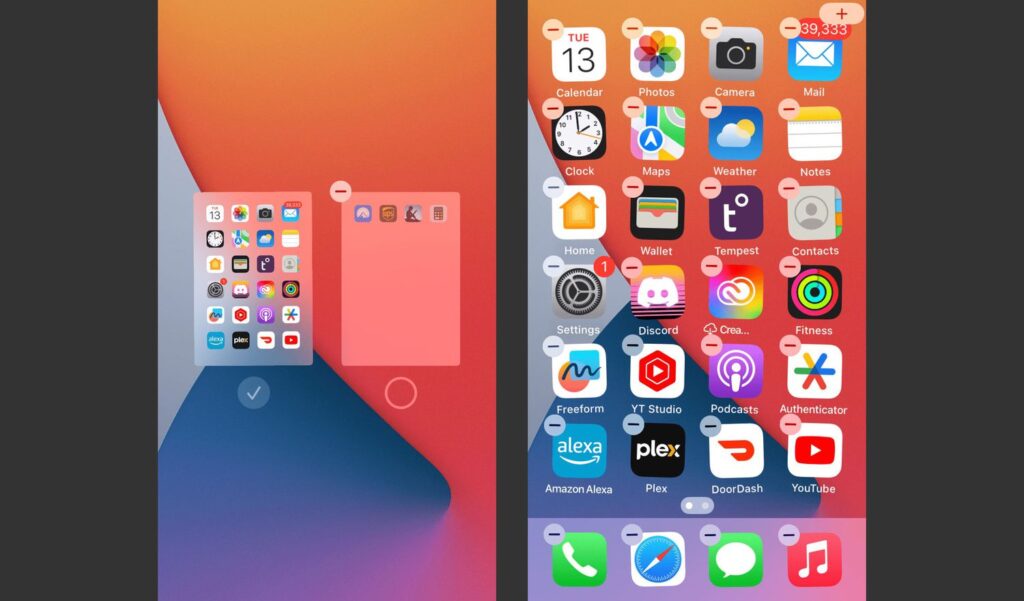
iOS allows users to hide entire Home Screen pages, which is one of the most common reasons apps suddenly seem to disappear from an iPhone. This feature is designed to help users keep their Home Screen clean, private, and distraction-free, but it can easily be enabled by accident. When a Home Screen page is hidden, all apps on that page vanish at once, making it look like they were deleted—even though they’re still installed on your device. Fortunately, restoring hidden Home Screen pages takes only a few seconds and instantly brings back all missing apps.
Steps:
- Long-press on the Home Screen
- Tap the dots at the bottom
- Check if any pages are unchecked
- Enable hidden pages again
Once restored, your missing apps may reappear instantly.
How to Find Hidden Apps on iPhone Using App Store History
Apps hidden from the Home Screen may still exist in App Store records.
Steps:
- Open App Store
- Tap your profile icon
- Select Purchased
- Browse the list
If you see the app with a download icon, it was uninstalled—not hidden.
How to Find Hidden Apps on iPhone Using Siri
Siri can locate hidden apps easily.
Try Saying:
- “Hey Siri, open WhatsApp”
- “Open Calculator”
If Siri opens the app, it’s installed but hidden.
How to Find Hidden Apps on iPhone with Restrictions Removed
If apps are restricted by age or content:
Steps:
- Go to Settings → Screen Time
- Tap Content Restrictions
- Select Apps
- Choose Allow All Apps
This removes content-based hiding.
How to Find Hidden Apps on iPhone After iOS Update
Sometimes apps disappear after updates.
Fix:
- Restart your iPhone
- Recheck App Library
- Search via Spotlight
- Update iOS to the latest version
System bugs can temporarily hide apps.
How to Find Hidden Apps on iPhone for Parental Monitoring
Parents often search how to find hidden apps on iPhone to ensure child safety.
Recommended Actions:
- Enable Screen Time reports
- Review App Usage
- Monitor app installs via Family Sharing
Apple makes it difficult to hide apps completely without detection.
Can Third-Party Apps Be Hidden on iPhone?
Unlike Android, iOS does not support true app cloaking.
What users can do:
- Hide apps in folders
- Remove from Home Screen
- Restrict access via Screen Time
Any installed app can still be found using system tools.
How to Prevent Apps from Being Hidden Again
To maintain visibility:
- Avoid disabling Home Screen pages
- Use Screen Time responsibly
- Keep App Library organized
- Label folders clearly
This ensures you never struggle again with how to find hidden apps on iPhone.
Final Thoughts:
Learning how to find hidden apps on iPhone gives you full control over privacy, security, and device management. Apple’s iOS offers multiple layers of app visibility, but no app is ever truly invisible. By using Spotlight Search, App Library, Screen Time settings, and App Store history, you can quickly locate and restore any hidden app.
Whether you’re a parent, professional, or casual user, this guide ensures you never lose track of your apps again.
Frequently Asked Questions (FAQs)
Q. Can apps be completely hidden on iPhone?
Ans. No. All installed apps can be found using search, App Library, or settings.
Q. Does iPhone allow secret apps?
Ans. iOS prioritizes transparency; hidden apps are still traceable
Q. Why can’t I find an app even after searching?
Ans. The app may be deleted, restricted, or incompatible with your iOS version.