
If you’re asking how do you turn off Wi-Fi calling, you probably ran into a small but annoying issue. Maybe your calls keep dropping. Maybe the sound quality feels strange. Or maybe you just prefer using your regular mobile network.
Wi-Fi calling is designed to help when cellular coverage is poor. It routes your calls through an internet connection instead of your carrier’s network. While that sounds helpful, it doesn’t always work smoothly. Public Wi-Fi can be unstable. Home routers may switch signals. Even small connection changes can interrupt your call.
The good news is that turning off Wi-Fi calling is quick and simple. It usually takes less than a minute on most phones. In this guide, you’ll learn exactly how to disable it on both iPhone and Android devices. I’ll also explain when it makes sense to switch it off and share practical tips based on real everyday use.
Table of Contents
ToggleWhat Is Wi-Fi Calling (And Why Would You Turn It Off)?
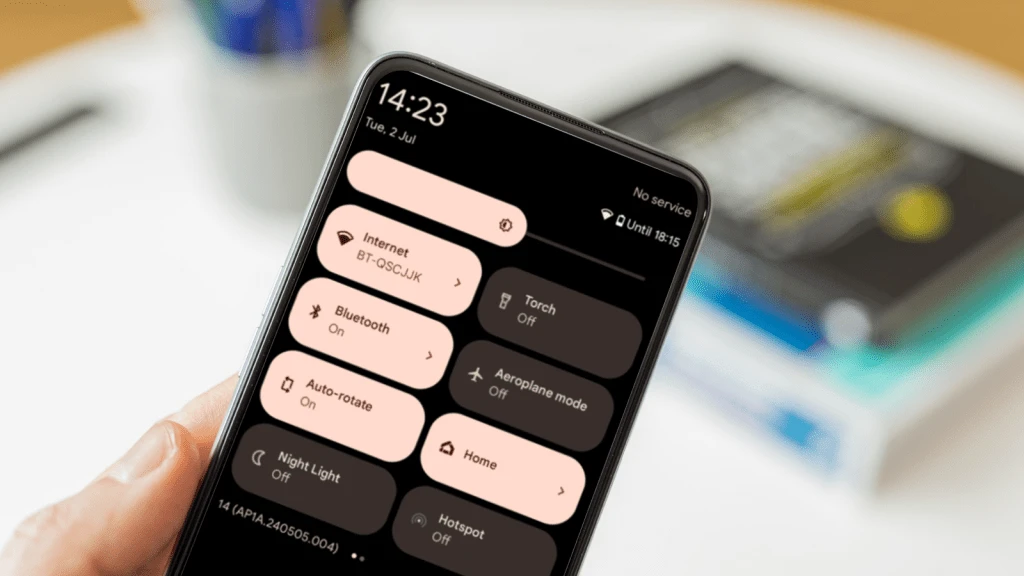
Wi-Fi calling is a feature that allows your smartphone to make and receive voice calls over a Wi-Fi connection instead of relying only on your mobile carrier’s cellular network. In simple terms, your call travels through the internet rather than nearby cell towers. This feature is built to improve call quality in areas where mobile signals are weak or unstable—such as basements, thick concrete buildings, offices with poor reception, or rural locations far from towers. Many carriers enable it by default because it can help users stay connected when regular signal bars are low.
But sometimes it creates problems:
- Calls drop when switching between Wi-Fi and cellular
- Voice sounds robotic or delayed
- Public Wi-Fi causes unstable connections
- Battery drains faster
- You’re traveling and worried about roaming charges
If any of this sounds familiar, disabling the feature may fix it.
How Do You Turn Off Wi-Fi Calling on iPhone?
If you use an iPhone, turning off Wi-Fi Calling is quick and straightforward. The steps are almost identical across most recent versions of iOS, whether you’re using a newer model or an older one still receiving updates. Apple keeps the setting in the same place, so you don’t have to dig through complicated menus. The whole process takes less than a minute, and you don’t need to restart your phone afterward.
Step-by-Step Instructions
- Open Settings
- Tap Phone
- Select Wi-Fi Calling
- Toggle Wi-Fi Calling on This iPhone to OFF
That’s it. Once turned off, your calls will go through your carrier’s cellular network.
Quick Tip
If you use other Apple devices (like iPad or Mac) connected to your number, check their settings too. Wi-Fi calling can stay active on those devices even if you disable it on your iPhone.
How Do You Turn Off Wi-Fi Calling on Android?
Android phones don’t all look the same, so the exact menu names can vary depending on the brand and software version. However, the process for turning off Wi-Fi Calling is very similar across most devices. Whether you’re using a Google Pixel, Xiaomi, OnePlus, or another Android phone, the setting is usually found inside the network or connection section. It only takes a few taps, and you don’t need any technical knowledge to disable it.
General Android Method
- Open Settings
- Tap Network & Internet or Connections
- Select Mobile Network
- Tap Wi-Fi Calling
- Turn the toggle OFF
On Samsung Phones
- Open Settings
- Tap Connections
- Tap Wi-Fi Calling
- Switch it OFF
You can also swipe down from the top of the screen and tap the Wi-Fi calling icon if it appears in the quick settings panel.
Why Won’t Wi-Fi Calling Turn Off?
Sometimes, even after following the correct steps, Wi-Fi Calling refuses to turn off. The toggle may appear greyed out, or it switches itself back on without warning. This can be frustrating, especially if you’re trying to fix call quality issues or stop calls from routing through Wi-Fi. In most cases, the problem isn’t your phone—it’s either a carrier setting or a small software issue running in the background. The good news is that these problems are usually easy to fix once you know what’s causing them.
Here are common reasons and fixes:
1. Carrier Settings Override
Some mobile providers enable Wi-Fi calling automatically when signal strength is low.
What to do:
- Restart your phone
- Update carrier settings
- Contact customer support
2. Software Glitch
Small bugs can cause settings to behave strangely.
Try this:
- Restart your device
- Update to the latest software version
- Reset network settings
Keep in mind: resetting network settings removes saved Wi-Fi passwords.
When Should You Turn Off Wi-Fi Calling?
Wi-Fi Calling can be a great backup feature, especially when mobile signal is weak. But it’s not always the best option in every situation. The right choice depends on your signal strength, internet stability, and even where you’re making calls from. If your cellular network is strong and reliable, you may not need Wi-Fi Calling at all. On the other hand, if you live in an area with poor reception, it can be a lifesaver. Understanding when to keep it on—and when to switch it off—can prevent dropped calls and frustrating audio issues.
Here’s a quick guide:
Situation | Should You Turn It Off? |
Strong cellular signal | Yes, you can |
Unstable home Wi-Fi | Yes |
Using public Wi-Fi | Recommended |
Weak mobile coverage | Keep it ON |
Traveling internationally | Check with carrier first |
Real Example
A client I helped recently worked from home and had strong fiber internet. But their router was placed far from their desk. During calls, the phone switched between Wi-Fi and cellular repeatedly, causing dropped calls.
Turning off Wi-Fi calling immediately solved the issue.
Small setting. Big difference.
Does Turning Off Wi-Fi Calling Improve Call Quality?
Whether you should turn off Wi-Fi Calling really comes down to your network conditions. There’s no single right answer for everyone. Some people notice clearer, more stable calls after disabling it, while others depend on it every day because their cellular signal is weak indoors. The key factor is which connection is more reliable in your specific location—your Wi-Fi network or your mobile carrier’s signal. A quick comparison can help you decide what works best for your daily calls.
- If your Wi-Fi is slow or unstable → Turning it off may improve call clarity.
- If your cellular signal is weak → Calls may get worse without it.
The best approach is to test both settings for a day and compare.
Does Wi-Fi Calling Use Data or Cost Extra?
Wi-Fi Calling works through your internet connection instead of your mobile data plan. That means when you make a call using Wi-Fi, it doesn’t consume your regular cellular data allowance. However, billing is not always as simple as “free over Wi-Fi.” Charges still depend on your mobile plan and your carrier’s policies. Even though the call travels through the internet, your phone number is still linked to your provider, so normal calling rules usually apply.
In most cases:
- Domestic calls are included in your plan
- International charges depend on your carrier
- Roaming rules may vary
Always confirm with your provider if you travel often.
Will Turning Off Wi-Fi Calling Save Battery?
Yes, in some situations Wi-Fi Calling can affect your battery life. The impact isn’t always dramatic, but it depends on how your phone manages network connections throughout the day. When Wi-Fi Calling is enabled, your device constantly monitors both Wi-Fi and cellular signals. If those signals are unstable, your phone may keep switching between them. That repeated switching can use extra power in the background, even when you’re not actively on a call.
If your phone constantly moves between Wi-Fi and cellular networks, it consumes more energy. In that case, turning off Wi-Fi Calling may reduce background network activity and slightly improve battery performance.
On the other hand, if your cellular signal is weak, your phone will work harder to stay connected to nearby towers. That extra effort can also drain your battery quickly.
The best approach is simple: test both settings for a day or two. Monitor your battery usage and call performance, then keep the option that gives you better stability and longer battery life.
How to Check If Wi-Fi Calling Is Active
If you’re not sure whether Wi-Fi Calling is active, there are a few easy ways to check. Most smartphones show clear visual indicators when the feature is turned on. These small signs appear in your status bar or during calls, and they help you confirm which network your phone is using. You don’t need to open settings every time—just look at the top of your screen or the call interface.
- A small phone + Wi-Fi icon in the status bar
- “Wi-Fi Calling” displayed during a call
- Carrier name showing Wi-Fi next to it
If you don’t see these indicators, it’s likely disabled.
Final Thoughts: Should You Turn Off Wi-Fi Calling?+
If you were searching how do you turn off Wi-Fi calling, now you know exactly what to do.
Here’s the simple takeaway:
- Strong mobile signal? You probably don’t need it.
- Weak signal at home? Keep it on.
- Experiencing call issues? Try turning it off and test.
Wi-Fi calling is not good or bad — it depends on your environment. The key is understanding when to use it.
Small adjustments like this can improve call quality, reduce frustration, and even save battery life.
Take one minute today, check your setting, and choose what works best for you.
FAQ: How Do You Turn Off Wi-Fi Calling?
1. Is it safe to turn off Wi-Fi calling?
Yes. It won’t harm your phone. Your calls will simply use your mobile network instead.
2. Will I miss calls if I disable Wi-Fi calling?
Only if your cellular signal is very weak. Otherwise, calls work normally.
3. Can I turn Wi-Fi calling back on later?
Yes. You can enable it anytime using the same settings.
4. Why does my phone automatically switch to Wi-Fi calling?
Phones prioritize the strongest and most stable connection. If your cellular signal drops, it may switch automatically.
5. Does Wi-Fi calling work without SIM?
In most cases, you still need an active SIM and carrier support for it to work.