If you are searching for How Do I Reset Acer Laptop, you’re in the right place. Many Acer users experience slow performance, software errors, virus attacks, or login issues, and resetting the laptop becomes the best solution. In this detailed guide, you’ll learn how to reset an Acer laptop, how to factory reset an Acer laptop, and how to reset your Acer laptop to factory settings safely without losing data.
This article covers multiple reset methods, reasons to reset, backup options, and tips to keep your Acer laptop running smoothly after the reset.
Table of Contents
ToggleWhy You May Need to Reset an Acer Laptop
Before learning How Do I Reset Acer Laptop, it’s important to understand why performing a reset is often the most effective solution for many common laptop problems. Over time, your Acer laptop can begin to slow down due to heavy usage, unnecessary software installations, or corrupted system files that affect performance. You may experience frequent Windows errors, system crashes, black screen issues, or unexpected shutdowns. In some cases, virus or malware infections damage important files, making the laptop unstable. A reset also becomes necessary if you have forgotten your password and cannot access your system, or if you are planning to sell or give away your laptop and want to completely erase all personal data. Even issues like WiFi not connecting, keyboard not responding, or other hardware functions misbehaving can sometimes be fixed by a full system reset. In all these situations, resetting your Acer laptop restores the device to a clean, fresh state and instantly improves performance.
Laptop becoming slow
Too many apps or corrupted system files
Windows errors or black screen issues
Virus or malware infection
Forgot password
Want to sell or give away the laptop
WiFi, keyboard, or system functions not working proper
A reset restores the laptop to a clean state and improves performance instantly.
How to Prepare Before Resetting Your Acer Laptop
Before you start the reset process, it’s important to prepare your device properly to avoid losing important files and to ensure the reset completes smoothly. Preparing your system not only protects your personal data but also helps prevent errors or interruptions during the reset. Follow these essential steps before resetting your Acer laptop:
1. Backup Your Important Data
Resetting may erase files. Make sure to back up:
- Documents
- Photos and videos
- Browser passwords
- Software license keys
You can use:
- Google Drive
- OneDrive
- USB drive
- External hard disk
2. Ensure Battery Above 50%
A reset failure due to battery drain can damage the system.
3. Remove External Devices
Remove:
- USB
- Memory card
- CD/DVD
- Printer cable
This helps avoid system errors during reset.
How Do I Reset Acer Laptop Using Windows Settings (Recommended Method)
This is the simplest and most recommended way to reset your Acer laptop if the device is working normally and you can access the Windows interface without issues. Using Windows Settings allows you to perform a clean reset without any technical steps or external tools. Whether your laptop is running slow, facing software problems, showing error messages, or you simply want to refresh the system for better performance, this method provides a safe and easy way to restore your device. It is also ideal for beginners who want to follow a straightforward process for How Do I Reset Acer Laptop without needing USB drives, advanced commands, or special recovery tools.
Step-by-Step Guide
Step 1: Open Windows Settings
Click:
Start Menu → Settings → System → Recovery
Step 2: Choose Reset PC
Under Recovery Options, you will see:
Reset this PC → Reset PC
Click it.
Step 3: Choose One of the Reset Options
Option 1: Keep My Files
- Windows reinstalls
- Apps and settings removed
- Personal files safe
- Use this when your system is slow or has errors.
Option 2: Remove Everything
- Full factory reset
- All files removed
- Laptop becomes brand new
Use this if:
- Laptop has a virus
- You forgot password
- Selling your laptop
Step 4: Choose Cloud Download or Local Reinstall
- Cloud download: Downloads fresh Windows (requires internet)
- Local reinstall: Uses built-in system files (no internet needed)
Step 5: Click Reset
Your Acer laptop will restart and begin the reset process.
Time required: 20–45 minutes.
This is the easiest method for How Do I Reset Acer Laptop Without USB.
How Do I Reset an Acer Laptop From Advanced Startup (If Windows Won’t Open)
If your Acer laptop won’t boot properly, freezes during startup, or displays continuous error screens, this advanced reset method is the best solution. When Windows fails to load or the system becomes completely unresponsive, accessing the normal settings menu may not be possible. In such cases, using the Advanced Startup Recovery environment allows you to perform a reset even when the laptop is stuck on a black screen, blue screen, or startup loop. This method is especially helpful for serious system problems caused by corrupted files, failed updates, malware attacks, or sudden shutdowns. It provides a powerful way to restore your laptop to working condition without needing a USB or external recovery tool.
Steps:
Step 1: Turn On Your Laptop
As soon as it starts loading, press:
Shift + F8 or Shift + Restart
Step 2: Choose Troubleshoot
You will see a blue screen.
Click:
Troubleshoot → Reset this PC
Step 3: Choose Reset Option
- Keep My Files
- Remove Everything
Step 4: Follow On-Screen Instructions
The Acer laptop will begin restoring to factory settings.
This method solves issues like:
- Blue screen
- Black screen
- Windows not loading
Startup errors
How Do I Factory Reset an Acer Laptop Using Acer Care Center
Some Acer models come with the Acer Care Center software.
Step 1: Open Acer Care Center
Search “Acer Care Center” in Start Menu.
Step 2: Select Recovery Management
Step 3: Choose “Restore Factory Settings”
This will reinstall the original Windows OS shipped with your laptop.
Step 4: Confirm Reset
Useful for users who want the original Acer setup.
How Do I Reset My Acer Laptop to Factory Settings Using Alt + F10
This is the most powerful Acer-specific reset method.
Step 1: Turn Off Your Laptop
Step 2: Turn It On and Immediately Press:
Alt + F10
This opens Acer eRecovery Management.
Step 3: Select Troubleshoot → Reset This PC
Step 4: Choose Factory Reset
This will reinstall the original factory version of Windows along with Acer drivers.
This method is perfect if:
- Windows is corrupted
- Laptop won’t start
You want a complete fresh start
How Do I Reset Acer Laptop Without Password
If you forgot your laptop password, try this method:
Method 1: Reset from Lock Screen
At the lock screen:
- Hold Shift
- Click Restart
- Go to Troubleshoot → Reset this PC
- Choose Remove everything
This resets the laptop without needing login.
Method 2: Using Alt + F10 Factory Reset
- Turn off laptop
- Press Alt + F10 during boot
Choose Factory Reset
Things to Do After Resetting Your Acer Laptop
After you complete How Do I Reset Acer Laptop, follow these steps:
- Install Windows Updates
- Install antivirus
- Reinstall applications
- Restore your backed-up files
- Update Acer drivers
- Turn on Windows Defender
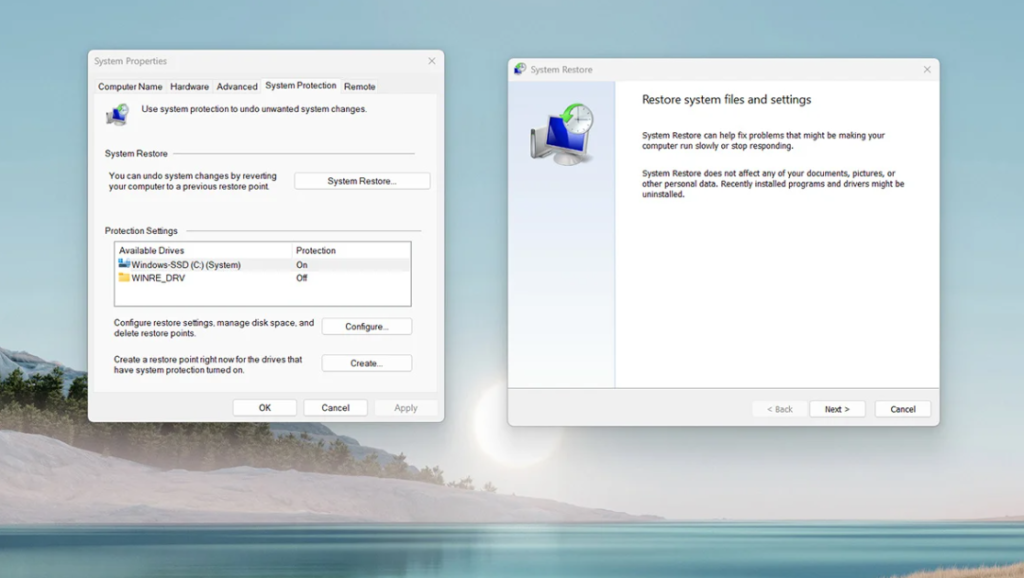
- Create a restore point
Tips to Maintain Your Acer Laptop After Reset
- Clean junk files monthly
- Avoid installing unknown apps
- Keep system updated
- Use SSD for faster speed
- Enable auto backup
- Keep 15–20% storage free
These tips ensure your laptop performs fast and stays error-free for a long time.