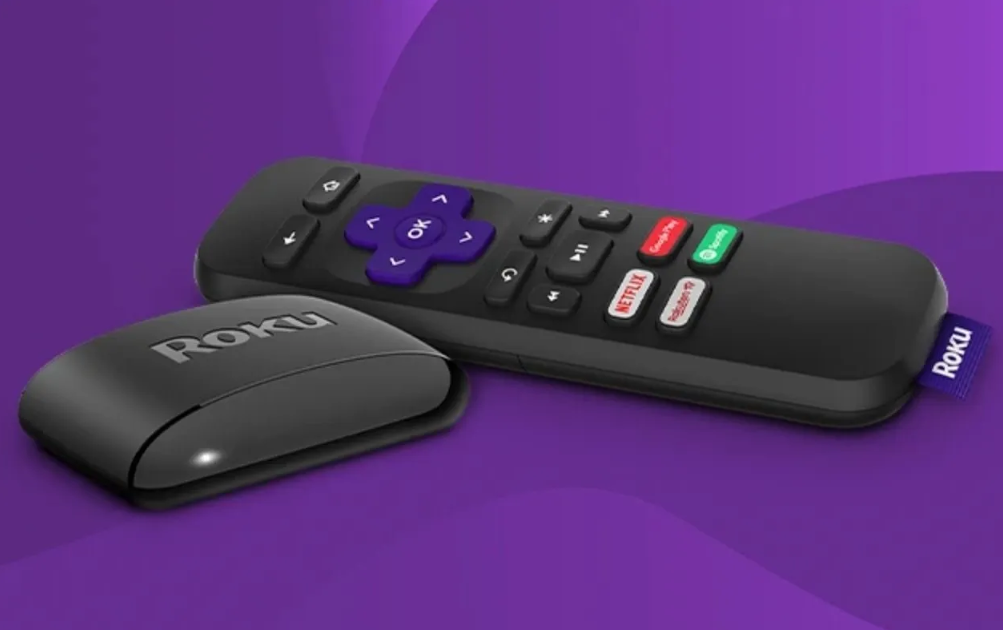
If you’re searching for how to connect Roku to WiFi without remote, you’re not alone. Losing a Roku remote, dealing with dead batteries, or setting up a second-hand Roku device can quickly turn into a frustrating experience—especially when your Roku needs an internet connection to work at all. The good news is that you can connect Roku to WiFi without a remote using several proven methods, and most of them take only a few minutes.
In this complete and updated guide, you’ll learn how to connect Roku to WiFi without remote using a smartphone, Ethernet cable, mobile hotspot, TV remote, and other reliable alternatives. Whether you’re setting up Roku for the first time or switching to a new WiFi network, this guide covers every practical solution.
Table of Contents
ToggleWhy You Might Need to Connect Roku to WiFi Without a Remote
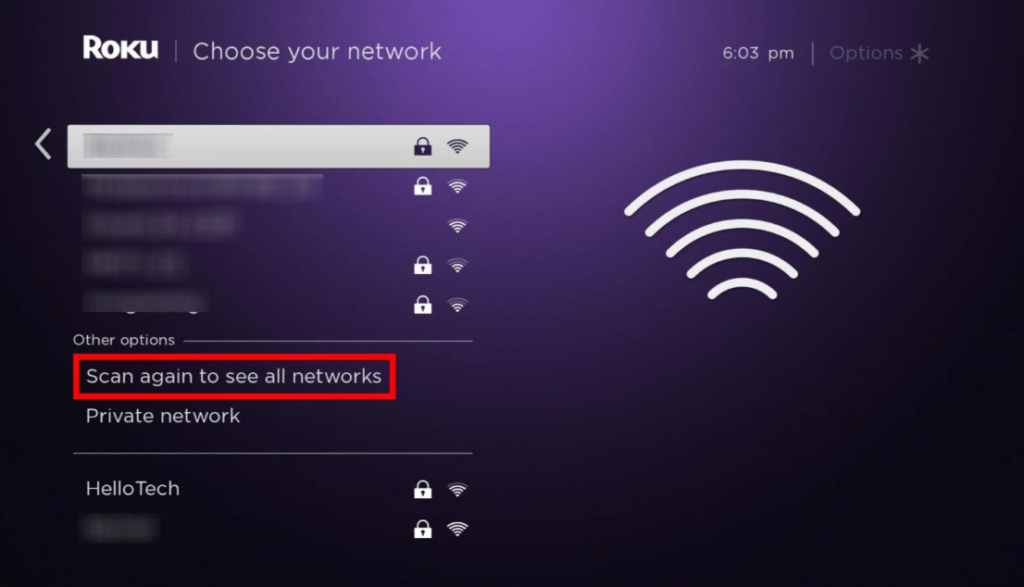
There are many real-world situations where users need to connect Roku to WiFi without a remote control, such as:
- Roku remote is lost or broken
- Remote batteries are dead
- Roku app isn’t working due to WiFi change
- Bought a used Roku device without a remote
- Moving to a new home or changing internet provider
- Roku remote not pairing or responding
In all these cases, understanding how to connect Roku to WiFi without remote becomes essential.
Things to Know Before You Start
Before trying any method to connect Roku to WiFi without a remote, keep these important points in mind:
- Roku must be powered on
- Some methods require Roku to have been connected to WiFi previously
- Roku mobile app needs both devices on the same network
- Ethernet method works best for first-time setup
- Streaming Sticks have fewer physical ports than Roku TVs
Knowing this will help you choose the right method for your situation.
Method 1: How to Connect Roku to WiFi Without Remote Using Roku Mobile App
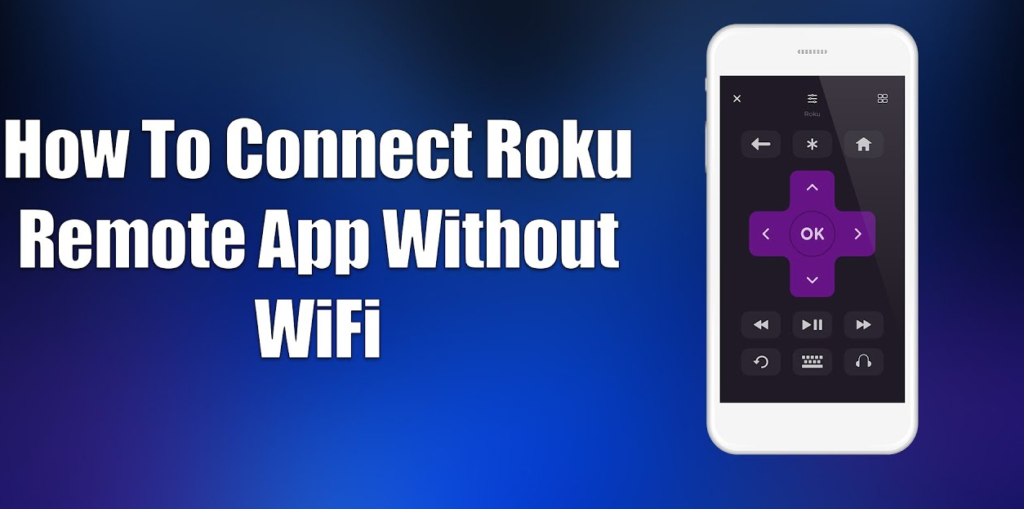
This is the most popular and recommended method for users who want to learn how to connect Roku to WiFi without remote because it is simple, fast, and does not require any extra hardware. By using the official Roku mobile app, you can turn your smartphone into a fully functional remote control and access all Roku settings easily. This method works especially well if your Roku device was previously connected to a WiFi network, as it allows the app to detect the device automatically. For most users, this is the quickest and safest way to reconnect Roku to a new WiFi network without needing a physical remote.
What You Need
- Android or iPhone
- Roku Mobile App (free)
- Roku previously connected to WiFi
Steps to Connect Roku to WiFi Without Remote Using Phone
- Download the Roku App from Play Store or App Store
- Turn on your Roku device
- Connect your phone to the same WiFi network Roku used before
- Open the Roku app
- Tap the Remote icon
- Navigate to Settings → Network → Set Up Connection
- Select Wireless and connect to new WiFi
This method works perfectly if Roku still remembers the old network.
Method 2: How to Connect Roku to WiFi Without Remote Using Ethernet Cable
If your Roku device has never been connected to the internet or cannot access any WiFi network, using an Ethernet cable is the most reliable and stable solution. This method is especially useful for first-time Roku setup, switching to a new WiFi network, or when the Roku mobile app cannot detect your device due to lack of internet access. By connecting Roku directly to your router with a LAN cable, the device instantly gains internet access without needing a remote. Once connected, you can easily use the Roku mobile app to complete the wireless WiFi setup, making this method one of the safest and most effective ways to connect Roku to WiFi without a remote.
What You Need
- Ethernet cable
- Router with LAN port
- Roku device with Ethernet support (Roku Ultra or Roku TV)
Steps
- Plug Ethernet cable into your router
- Connect the other end to Roku
- Roku will auto-connect to the internet
- Open Roku mobile app
- Use app remote to set up wireless WiFi
Once WiFi is configured, you can unplug the Ethernet cable.
Best solution for new Roku setup without remote.
Method 3: How to Connect Roku to WiFi Without Remote Using Mobile Hotspot Trick
This is a clever and highly effective workaround for users who want to reconnect Roku to the internet without a remote, especially when the Roku mobile app cannot find the device due to a WiFi change. This method works by temporarily turning your smartphone into a WiFi network that mimics your old router’s name and password. Since Roku automatically connects to known networks, it will recognize the hotspot and connect without any manual input. Once Roku is back online, you can easily open the Roku mobile app and change the WiFi network to your new or permanent connection. This trick is simple, requires no extra hardware, and works well in many real-world situations.
Steps
- Open hotspot settings on your phone
- Rename hotspot to same name as old WiFi
- Use the same password
- Turn on hotspot
- Roku connects automatically
- Open Roku app and change WiFi network
Network name and password must match exactly.
Method 4: How to Connect Roku to WiFi Without Remote Using TV Remote (HDMI-CEC)
If your Roku device is connected to a smart TV, you may not need a Roku remote at all. Many modern televisions support HDMI-CEC (Consumer Electronics Control), a feature that allows one remote to control multiple devices connected via HDMI. When HDMI-CEC is enabled, your TV’s remote can act as a basic controller for your Roku, letting you navigate menus and access settings. This method is especially helpful for Roku Streaming Sticks and Roku TVs, and it provides a simple way to connect Roku to WiFi without a remote, using only your existing TV remote.
Supported TV Brands
- Samsung (Anynet+)
- LG (Simplink)
- Sony (Bravia Sync)
- TCL, Hisense, Vizio
Steps
- Enable HDMI-CEC in TV settings
- Use TV remote to control Roku
- Go to Settings → Network → Wireless
- Connect Roku to WiFi
This works best for Roku TVs and HDMI Roku devices.
Method 5: How to Connect Roku to WiFi Without Remote Using USB Keyboard (Limited Support)
Certain Roku TVs allow you to use a USB keyboard as an alternative input device, which can be very helpful if your Roku remote is lost, broken, or unresponsive. By connecting a keyboard directly to the TV, you can navigate through the Roku interface using the arrow keys, select options with the Enter key, and access important settings like WiFi configuration.
Steps
- Plug USB keyboard into Roku TV
- Use arrow keys for navigation
- Press Enter to select
- Open WiFi settings
This does not work on Roku Streaming Stick models.
Method 6: Buy a Replacement or Universal Roku Remote
While mobile apps, Ethernet connections, and other workarounds are often effective, there are times when a physical remote is simply the most reliable solution. Using a dedicated remote ensures full control over your Roku device, including navigation, settings, and WiFi configuration, without relying on software tricks or network dependencies.
Remote Options
- Official Roku Voice Remote
- Basic IR Roku remote
- Universal remote (Logitech, RCA, GE)
These remotes pair easily and cost relatively little.
What If Your Roku Has Never Been Connected to WiFi?
If Roku has never been connected to the internet:
- Roku mobile app will not detect it
- Hotspot trick will not work
- HDMI-CEC may not work
Best Option
Use Ethernet cable or buy a replacement remote
Common Problems and Fixes
Roku App Not Finding Device
- Restart router
- Restart Roku
- Check same network connection
Roku Connected but No Internet
- Reboot modem
- Forget network and reconnect
- Update router firmware
Remote App Lagging
- Switch to 5GHz WiFi
Close background apps
Frequently Asked Questions
Can I connect Roku to WiFi without remote and without internet?
Yes, by using an Ethernet cable for initial setup.
Does Roku work without WiFi?
No. Internet is required for streaming content.
Is Roku mobile app a full remote replacement?
Yes. It supports navigation, voice search, and keyboard input.